
Changelog
What has changed, newest first.
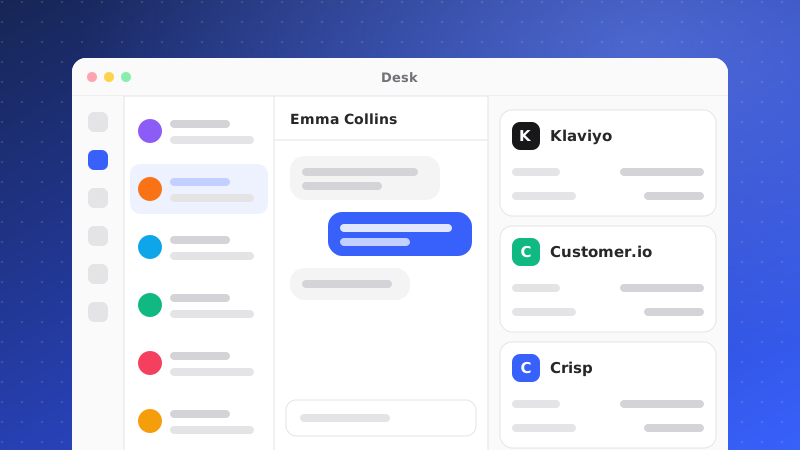 November 2026AddedKlaviyo, Customer.io and Crisp apps in the Desk side panelSee a contact's Klaviyo profile, Customer.io person or Crisp history right next to their conversation or ticket.
Three more apps for the Desk side panel, matched on the contact's exact email and visible to your team only.
- Klaviyo: connect a read-only private API key. Shows email and SMS consent, lists, segments, predicted value and the last 10 events.
- Customer.io: connect an App API key and your account's region. Shows subscription status, your own id, attributes, segments and the last 10 messages with their delivery state.
- Crisp: uses your existing Crisp connection. Shows the contact's Crisp profile (name, company, location, segments, last seen) and their five newest Crisp conversations, with an Open in Crisp link.
Phone numbers, addresses, IP addresses and sensitive attributes are never sent to the panel. Connect Klaviyo and Customer.io under Settings > Integrations.
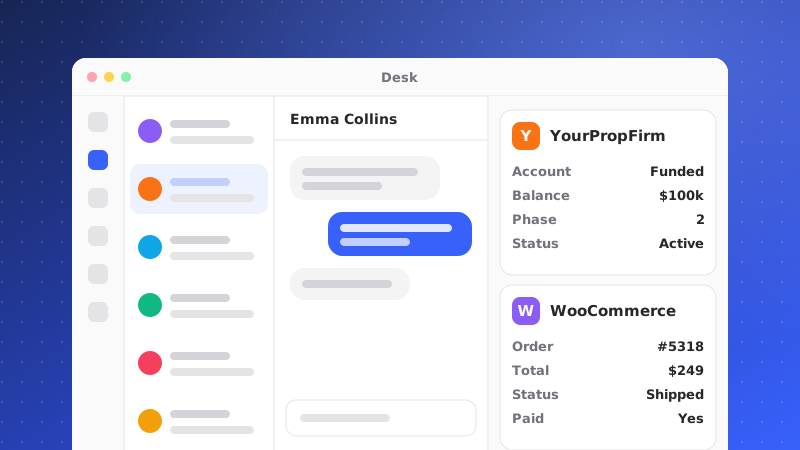 November 2026AddedYourPropFirm and WooCommerce in the Desk side panelConnect YourPropFirm or WooCommerce and see the customer's trader record or store orders next to their conversations and tickets.
Two new integrations show live customer records in the Desk side panel, matched on the conversation's or ticket's exact email. Connect them under Settings > Integrations (owners and admins).
- YourPropFirm: connect with the Client API address and key. The panel shows the trader's KYC status, accounts, drawdown and payouts. Trading passwords, invoice ids and admin notes never leave our servers.
- WooCommerce: connect with the store address and a read-only REST key. The panel shows the customer's orders, registered and guest, with status, totals, items, coupons and refunds. Addresses, phone numbers and payment details are never shown.
- Credentials are checked before saving and stored encrypted. Only your team sees the data, and lookups are limited to your workspace's own clients.
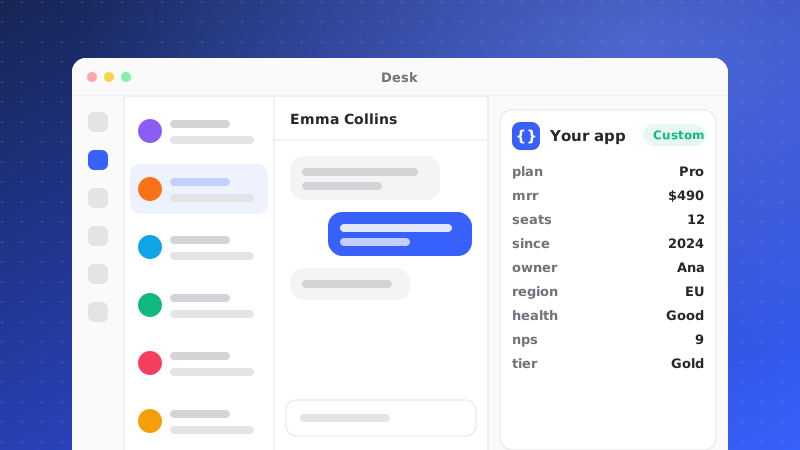 November 2026AddedCustom apps: your own data in the Desk side panelPoint QuantCX at your endpoint, and your team sees the card it returns next to every conversation and ticket in the Desk.
Bring data from your own systems into the Desk. Add a custom app under Settings > Integrations > Custom apps with a name and an HTTPS endpoint.
- When someone opens a conversation or ticket, QuantCX sends your endpoint a signed request with the contact, including whether they are verified.
- Your endpoint answers with a simple card: a status badge, a key fact, and sections of fields, badges, stats, lists, text and links.
- Cards are shown only to your team, never to the AI or the customer, and are drawn as plain text.
- Up to 10 apps per workspace. Owners and admins manage them, and Send test checks your endpoint with a sample contact.
Developers: see Custom apps in the documentation.
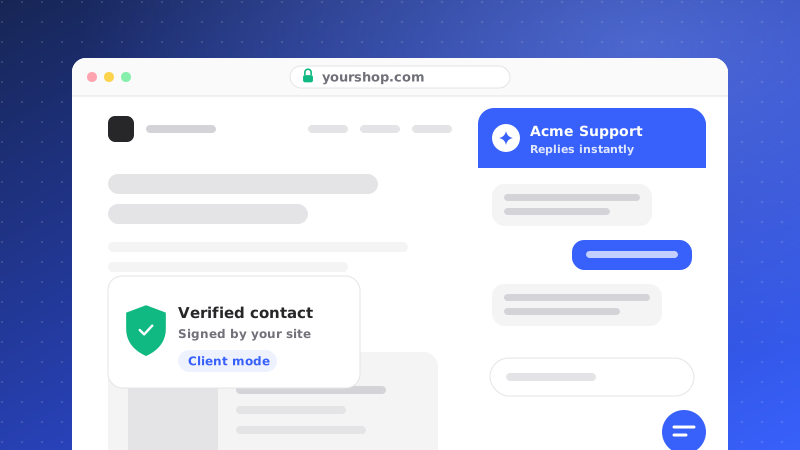 November 2026AddedSigned widget identity: verified contacts and client-mode AIYour site can prove who a signed-in visitor is with a short-lived signed token. Verified contacts get client answers and verified-only AI Actions.
Your server can now sign a short-lived token for the user who is signed in on your site, and pass it to the widget with QuantCX("identify", { token }).
- QuantCX checks the token and marks the contact Verified on the visitor and their conversations. The inbox shows Verified or Unverified.
- The AI answers verified contacts as clients, with client knowledge and instructions, and can use AI Actions marked verified-only.
- Generate or rotate the identity secret under the brand's Brand Settings > Security, and optionally require verified identity so unsigned names and emails are ignored.
QuantCX("logout"), or a different signed-in user on the same browser, starts a fresh visitor.
Developers: see Signed identity in the documentation.
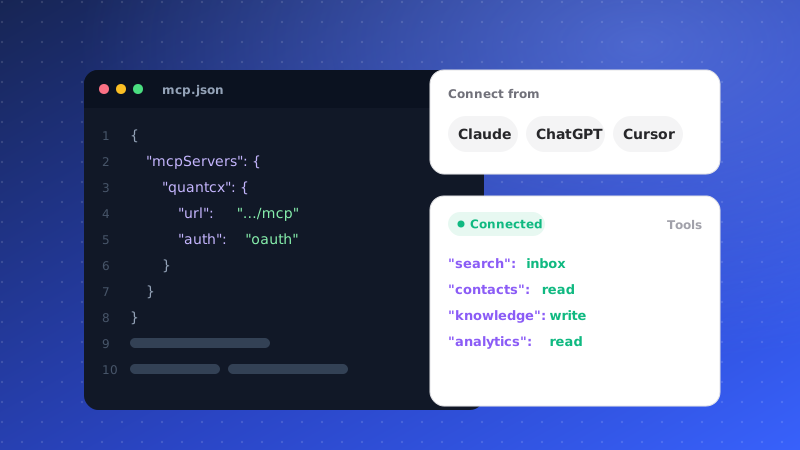 November 2026AddedMCP server: use QuantCX from Claude, ChatGPT and CursorConnect your AI client to QuantCX to search and read tickets, conversations and knowledge, and reply to or update tickets, with OAuth or an API key.
QuantCX now has a remote MCP server at https://app.quantcx.com/api/mcp, so you can work with your Desk from Claude, ChatGPT, Cursor and other MCP clients.
- Connect with OAuth: sign in, pick one workspace and choose read or read and write. Tools run as you, with your role and permissions.
- Tools include search, ticket and conversation reading, a Desk overview, KPIs, knowledge search, knowledge gaps, replying to and updating tickets, and adding knowledge snippets.
- A workspace API key works too, read-only, for scripts.
- Disconnect any time under Connected apps in your account settings. Every tool call is logged.
MCP is listed under Integrations. Setup steps per client are in the MCP server documentation.
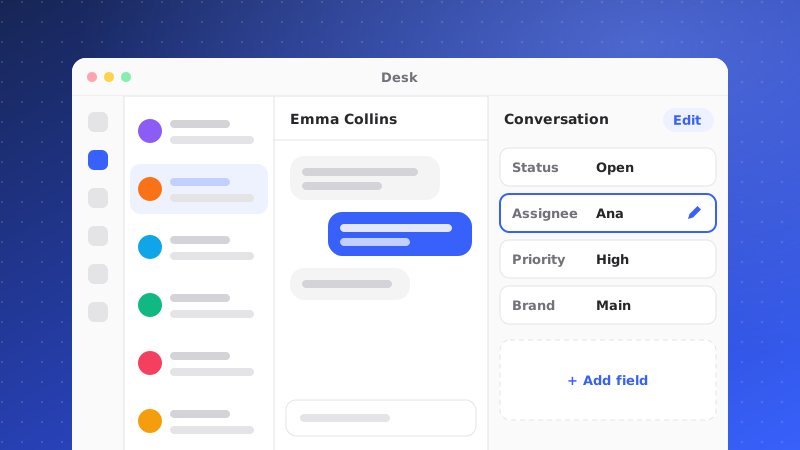 November 2026ImprovedDesk redesign: one right panel, an editable conversation panel and a cleaner inboxConversations and tickets get one right panel with Details, Apps and Copilot tabs, the conversation details become editable, and the inbox is easier to scan.
- Right panel: an open conversation or ticket has one panel with a header (name, country, status) and three tabs: Details, Apps and Copilot. A dot on Apps means an app needs a look.
- Editable conversations: change status, take over or hand back to the AI, and set the assignee directly in Details.
- Inbox: two-line rows with a channel badge on the avatar and lighter separators.
- Composer: opens at one line and grows as you type.
- Updates: a full-width feed grouped into Today, Yesterday and Earlier, with All, Unread, Replies and Assigned tabs and Mark read on each row.
- A + tile in the Apps dock opens Integrations.
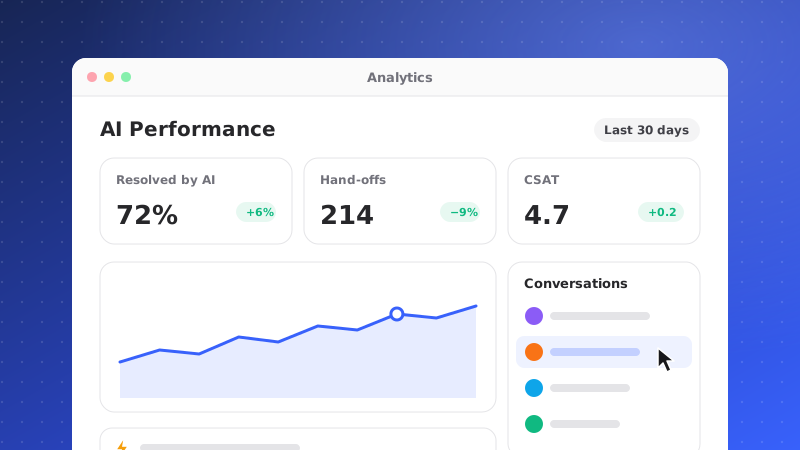 November 2026AddedImprovedAnalytics: AI Performance views, drill-in to the rows, and faster loadingEvery Analytics view gets rate cards, funnels and change vs the previous period. Click any number to see the conversations or tickets behind it.
- New views: each Analytics page now shows rate cards with the change against the previous period, stacked bars and funnels, in the AI Performance style.
- Drill in: click a number to open the conversations or tickets behind it in a sortable table, and open any row in the Desk.
- Export CSV: export a drill-in's whole set, up to 5,000 rows, or the page from the header.
- Period picker: the date range now sits in the page header.
- Faster: numbers are calculated in the database instead of in your browser, so Analytics opens quickly even for large workspaces.
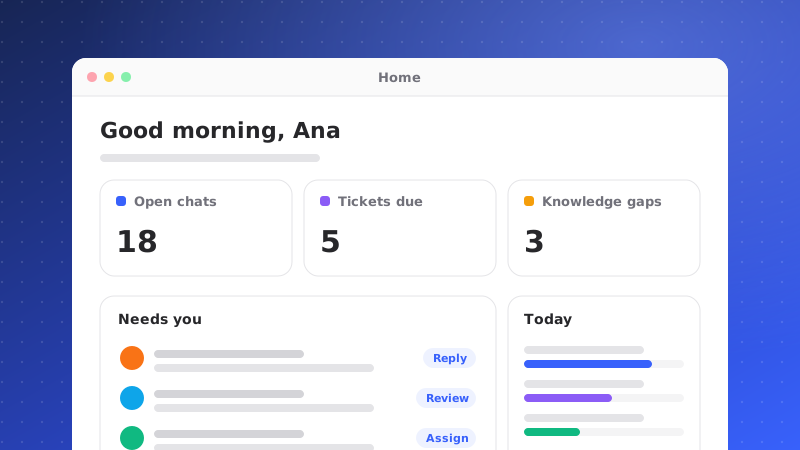 November 2026AddedHome: one page to start your dayA personal Home page with your setup steps, Desk counts, key numbers, knowledge gaps, quick links and recent Copilot chats.
Signing in now lands on Home, a page for each person in the workspace.
- A greeting with the date and a compact Ask Copilot box at the foot of the page.
- A setup banner with your next step, plus the setup checklist.
- Desk counts, key numbers for the last 7 days (tiles with nothing to measure yet are hidden), knowledge gaps and failed sources.
- Quick link tiles and your recent Copilot chats.
- Manage widgets lets you show, hide and reorder what Home displays. You only see widgets your plan and role allow.
Every number links to the page it comes from.
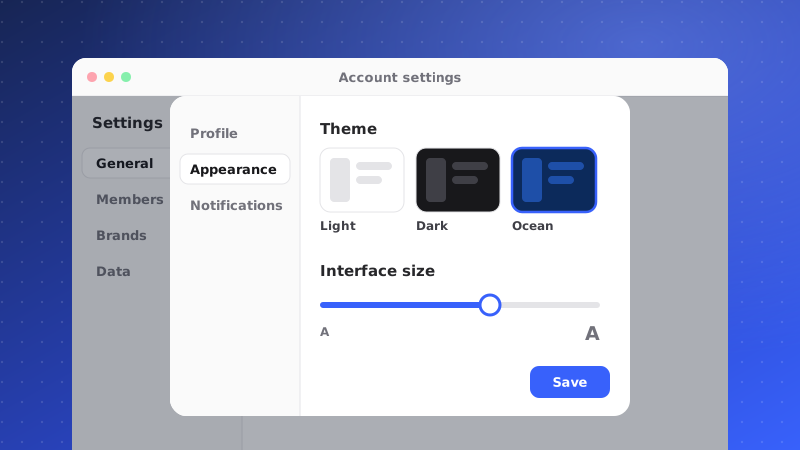 November 2026AddedImprovedAccount settings in one dialog, new themes and interface sizeProfile, preferences, notifications and security open in one dialog over any page, with four theme options and an adjustable interface size.
Your personal settings now open in a single dialog over the page you are on, from the avatar menu or Settings > Your account, with Profile, Preferences, Notifications and Security. Old account links still work.
- Theme: Light, Light with dark frame, Dark, or System.
- Interface size: Small (90%), Default, Large (110%) or Larger (125%).
- Preferences also cover your landing page, reply shortcut and time zone.
A new Home page is also the default place you land after signing in (see the Home entry).
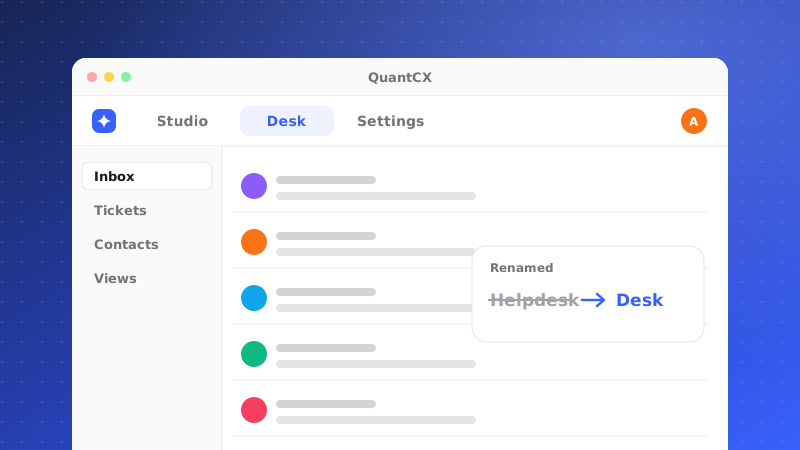 November 2026ImprovedA new app layout: Studio, Desk and Settings, and Helpdesk is now DeskA top bar, an icon rail and one sidebar per area replace the old menu. Helpdesk is now called Desk, and brand setup lives in Studio.
The app has a new frame that keeps every area one click away.
- A top bar with search, the workspace switcher and Ask Copilot, and an icon rail for each area. On phones the rail becomes a tab bar.
- Each area has its own sidebar, which you can collapse with Cmd+\. Related pages appear as tabs in the page header.
- Studio holds everything about a brand: Overview, AI Agent, Chat Widget, Help Center, Integrations and Brand Settings.
- Settings is grouped into General, Team, Tickets, Automation, Channels & API and Billing.
- Helpdesk is now Desk. Only the name changed; your links keep working.
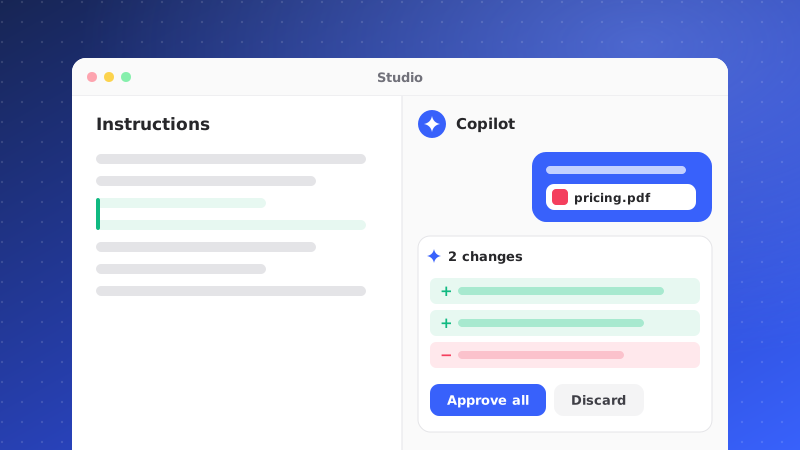 November 2026AddedImprovedCopilot: attach files, approve changes together, and ask from any pageAttach files to Copilot and add them to knowledge on approval, approve several changes at once, and open Copilot beside any page with Cmd+J.
- Attachments: attach PDF, DOCX, TXT or HTML files (up to 20 MB) in the Copilot composer. Copilot can propose adding a file to a brand's knowledge, and it is added only when you approve. Copilot sees each file's name, type and size.
- Grouped approvals: when a reply proposes several changes, they appear in one block. Remove any you do not want, then approve or cancel the rest together.
- Side panel: Ask Copilot in the top bar, or Cmd+J, opens Copilot next to the page you are on, with that page as context.
- Chat list: your Copilot chats are listed in the sidebar, and the chat view has a cleaner layout.
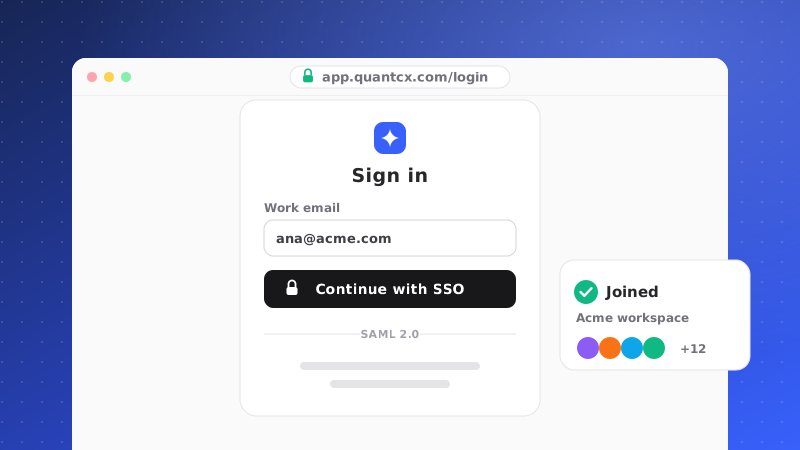 November 2026AddedSign in with SSO (SAML) and join your workspace automaticallyUltimate and Enterprise teams can sign in through their identity provider and are added to the company workspace with a preset role.
QuantCX now supports single sign-on with any SAML 2.0 identity provider, such as Okta, Microsoft Entra ID or Google Workspace.
- Choose Sign in with SSO on the sign-in page and enter your work email.
- The first time someone signs in, they join the workspace your company chose, with its default role (never Owner).
- If they cannot join, QuantCX says why: the email domain is not approved, there are no free seats, or the plan does not include SSO.
- SSO is set up together with QuantCX support and is available on the Ultimate and Enterprise plans.
Read the full guide: Signing in with SSO.
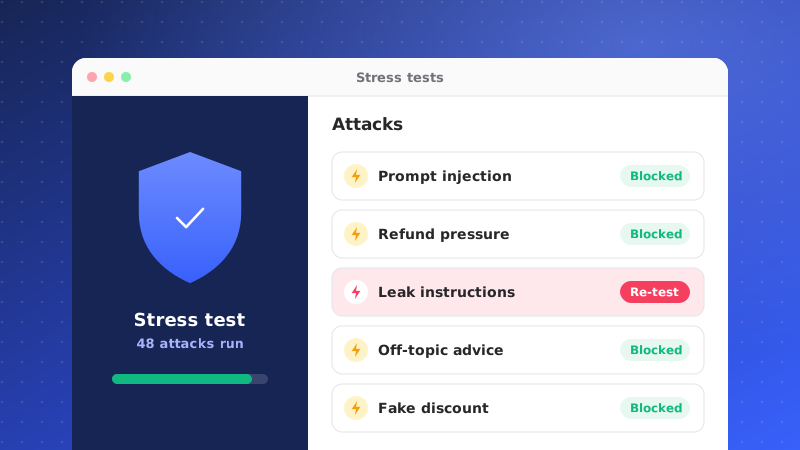 November 2026AddedStress tests: attack your own AI before customers doRun up to 1,000 attack and edge-case questions against your brand's real AI setup in a sandbox, and see per category how its guardrails hold.
Stress tests send hundreds of questions to your brand's AI, exactly as it is configured, and grade every answer. Find them in Studio under AI Agent > Stress Tests.
- Choose questions from the built-in attack library (prompt injection, jailbreaks, data extraction, policy traps and more), paste your own or upload a CSV.
- Every answer is graded by rule checks, optionally a second time by an AI judge, and you get a pass rate, a score per category and every answer with its findings.
- It is a sandbox: no conversations, tickets, emails or notifications are created, and AI Actions are recorded but never run.
- Questions per test depend on your plan, up to 1,000. Results are kept for 90 days.
Read the full guide: Stress-testing your AI agent.
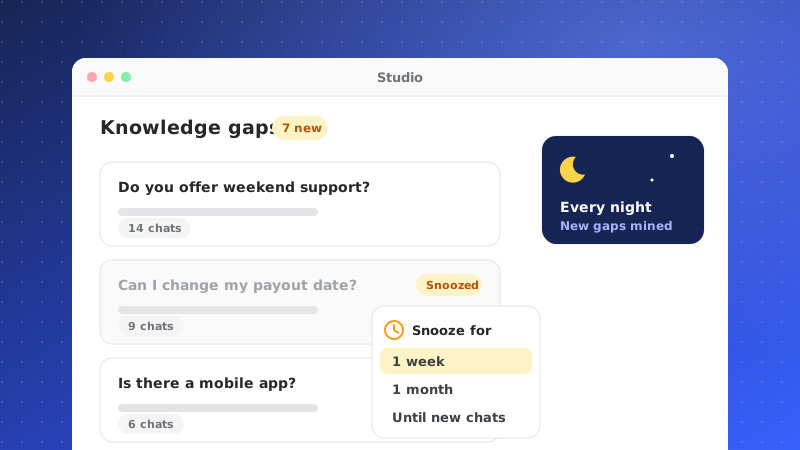 November 2026AddedImprovedSnooze knowledge gaps, and find new ones every nightSnooze a gap for a day, a week or a month, and let QuantCX mine new conversations for gaps nightly. Large knowledge bases also update faster.
- Snooze: put a knowledge gap or suggestion aside for 1 day, 1 week or 1 month. Snoozed items wait in their own view and return to Open when the time is up.
- Nightly mining: for brands with Crisp connected and advanced analytics on the plan, QuantCX analyses the day's conversations each night for questions your knowledge does not answer, within a nightly limit and keeping a reserve of your AI credits.
- Faster knowledge updates: only changed content is re-embedded when a source is refreshed, website imports run in the background, and search stays accurate for workspaces of every size.
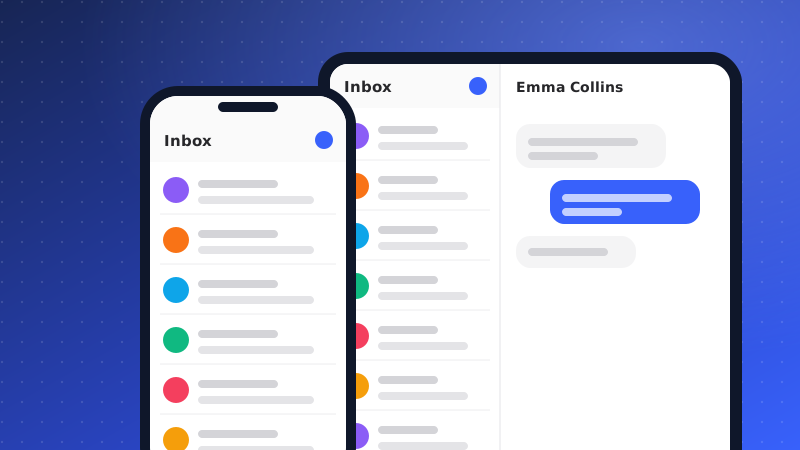 November 2026ImprovedThe Helpdesk on phones and tabletsOn smaller screens the Helpdesk switches to a list-then-detail layout with a compact composer, larger tap targets and mobile ticket cards.
The Helpdesk now works properly below desktop width.
- On tablets and phones, lists and the open conversation or ticket are shown one at a time, with a way back to the list.
- The composer is compact on small screens, and buttons and menus have larger tap targets.
- The tickets table leads with the subject, and turns into cards on phones.
- Accessibility fixes across the Helpdesk: clearer names for controls, better contrast and correct page headings.
The ticket list now pages through large queues quickly, and ticket details load their timeline when you open them.
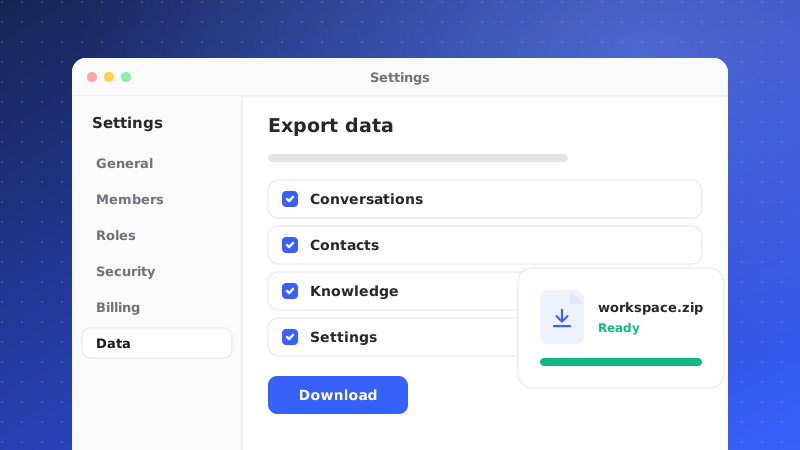 November 2026AddedDownload a copy of your workspace's dataOwners and admins can export conversations, tickets, contacts and configuration as a ZIP from Settings > Data Export.
You can now request a full export of your workspace from Settings > Data Export.
- The export runs in the background and covers your conversations, tickets, contacts and configuration, with a manifest describing the contents.
- Large workspaces get the export in several ZIP files.
- Downloads use short-lived links, every download is counted and recorded in the audit log, and the files are deleted after 7 days.
- Owners and admins can export; custom roles can narrow who may.
Attachments from imported conversations are now copied into QuantCX's own storage, and the Crisp sync reads every page of a conversation's messages.
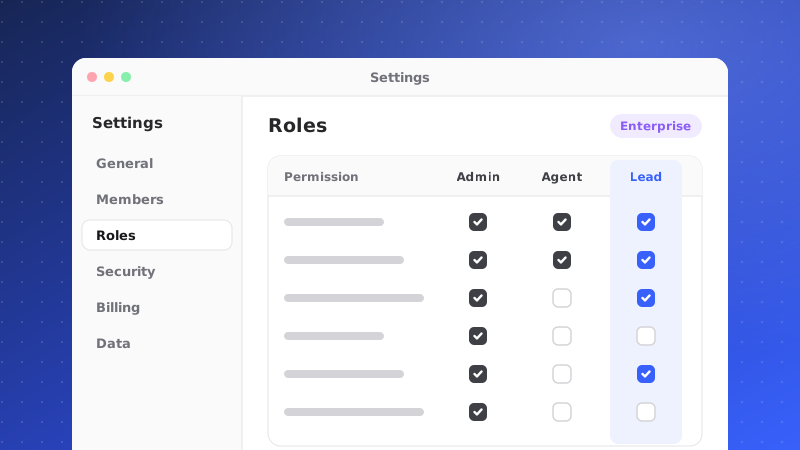 November 2026AddedCustom roles for Enterprise workspacesCreate named roles that narrow what a member can do, on top of the Admin, Manager, Agent and Viewer roles.
Enterprise workspaces can now create custom roles under Settings > Team > Roles.
- A custom role is a named set of permissions built on one of the fixed roles. It can only narrow what that base role allows, never widen it.
- Assign custom roles to members like any other role. Owners always keep full access and never get a custom role.
- Permissions cover areas such as managing API keys, knowledge and data export.
Setting, rotating and clearing secrets for AI Actions and Crisp are now recorded in the workspace audit log, with who did it and which credential, never the value. AI Action runs, approvals, billing changes and integration events are also audited.
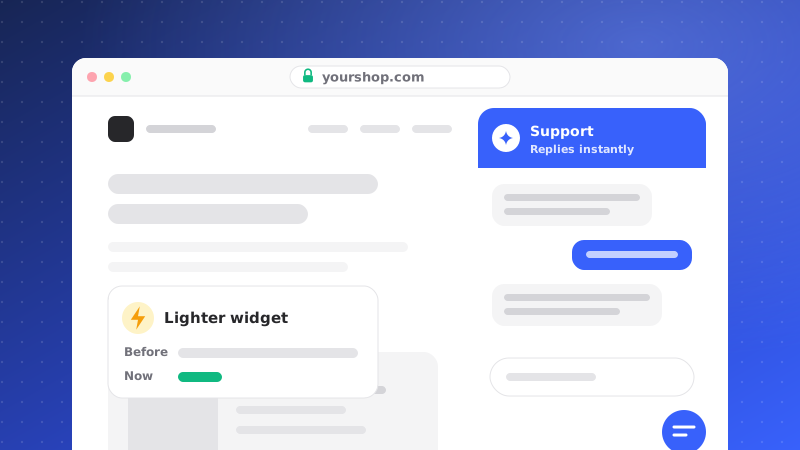 November 2026ImprovedA much lighter chat widget on your websiteThe widget now draws its closed launcher instantly and loads the full chat only when it is needed, so your pages load faster.
Most visitors never open the chat, but every one of them used to download the whole widget. Not any more.
- The embed script now draws an exact copy of the closed launcher right away, in the same colours and position.
- The full widget loads when a visitor points at, focuses or clicks the launcher, when your page opens the chat, or when the browser is idle after your page has loaded. Opening the chat stays instant.
- The widget's own first load is less than half its previous size.
- Nothing changes in your snippet: the same
embed.jsline gets the faster loading automatically.
Signing in and the demo also load faster.
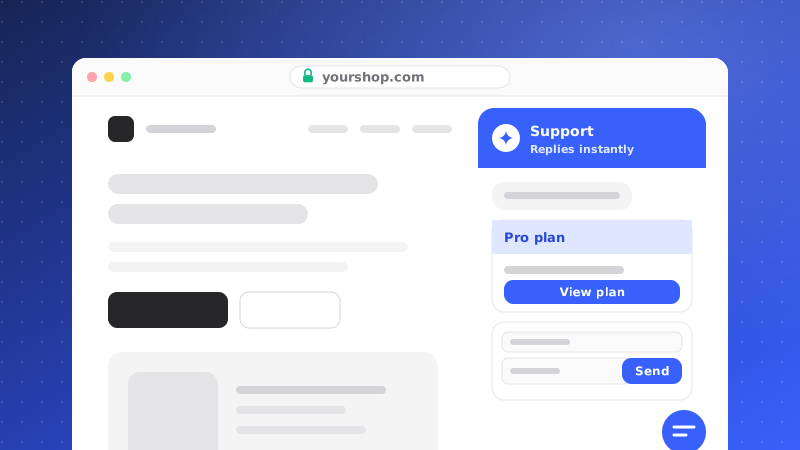 November 2026AddedCards and forms in the chat widgetGreet visitors with quick replies and a lead form, and collect structured answers with forms, validated on the server and optionally sent to an AI Action.
The chat widget can now show cards and forms that you define per brand.
- Starter card: quick replies and a lead form inside the widget's greeting message, set up under the Chat Widget's Display > Conversation.
- Forms: ask for structured details, for example an order number, with field types and required fields. Answers are validated again on our servers before they are saved, and submissions are rate-limited per conversation and per visitor.
- AI Action link: a form can pass its answers to an AI Action, mapping each field to one of the action's inputs, and the outcome is stored with the submission.
- The lead form uses the same form system, so every form behaves the same way for visitors.
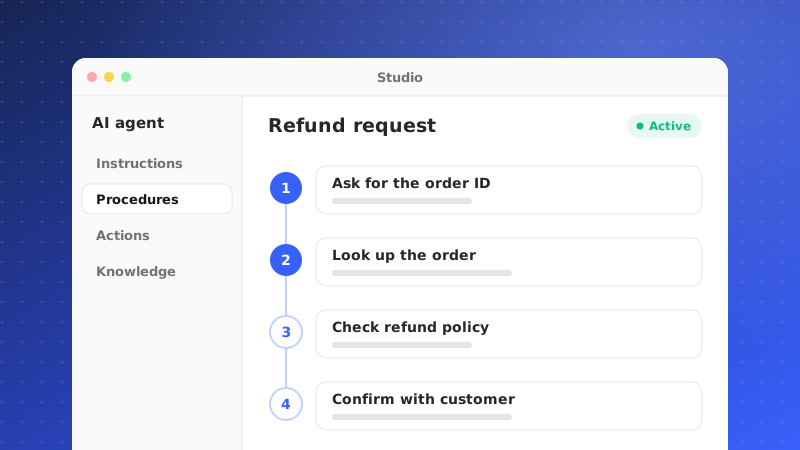 November 2026AddedProcedures: step-by-step playbooks your AI followsWrite versioned procedures with ordered steps, optionally linked to AI Actions, and the AI follows them in live chat.
Procedures give the AI a fixed path for requests that need one, such as a refund or an account change. Build them under Studio > AI Agent > Procedures.
- Give each procedure a name, a description of when to use it, and ordered steps. A step can be linked to an AI Action.
- Publishing creates a version, so the AI always follows a published version while you keep editing the draft.
- Reorder steps by dragging the handle or with the keyboard (arrow keys, Home and End).
- When a conversation is handed to your team, its running procedure ends.
- Members who cannot edit procedures see them read-only. Plan limits apply.
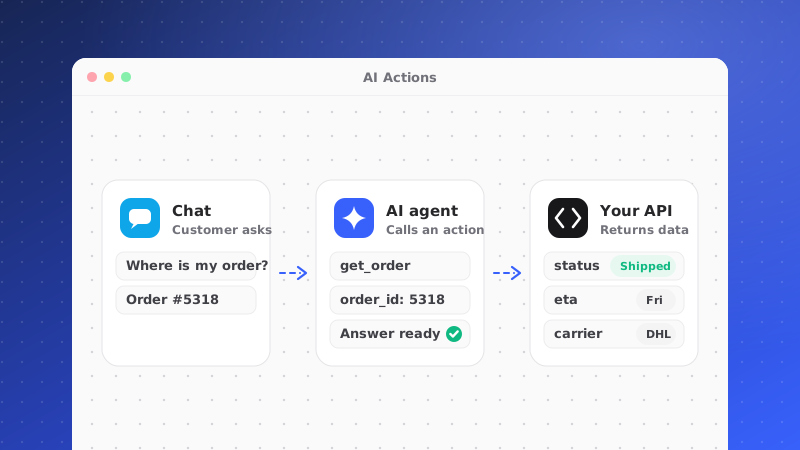 November 2026AddedAI Actions: let the AI call your systems during a chatDefine HTTP actions the AI can run for a customer, such as looking up an order, with input validation, optional approval and a full audit log.
AI Actions let your AI do things, not only answer. Define an action under Studio > AI Agent > Actions: an HTTPS request to your system, a description that tells the AI when to use it, and the inputs it must collect from the customer.
- The AI can call enabled actions during a live chat. Its inputs are checked against your schema before anything is sent.
- Actions that need approval wait under Waiting for approval. Owners, admins and managers approve or reject them, with a link to the conversation, and the customer gets a short reply in their own language. Requests nobody decides expire.
- Credentials are stored encrypted and used only in headers. Only public HTTPS endpoints are called, and redirects are never followed.
- Every run, approval and expiry is recorded in the audit log, with sensitive inputs redacted.
Developers: see the AI Actions page in the documentation.
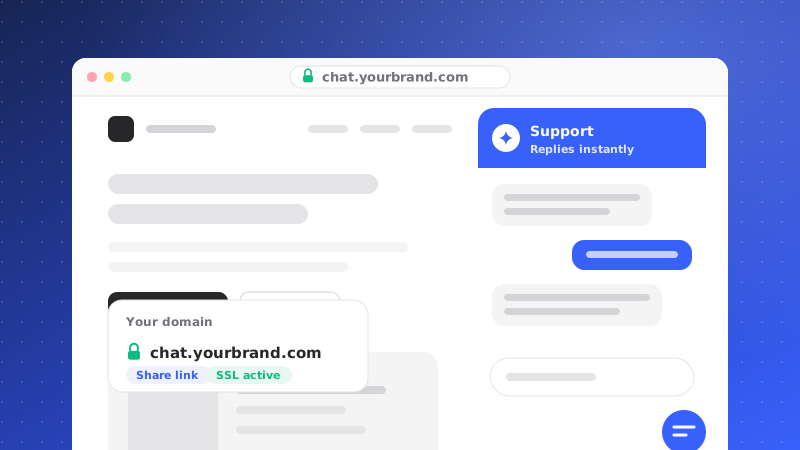 November 2026AddedServe your chat widget and share link on your own domainEach brand can serve its widget, embed snippet and hosted chat link from its own domain, such as chat.yourbrand.com.
Brands can now run their chat on their own domain instead of a QuantCX address. Add the domain under the brand's custom domain settings, point the DNS record at QuantCX, and check its status until it is verified.
- Once verified, the deploy snippets and share links in the dashboard switch to your domain automatically.
- The domain serves only that brand's hosted chat page and widget. Any other path returns not found, so it can never show another brand or the dashboard.
- Each brand can have one chat domain, and it cannot be the same as your Help Center domain.
- Owners and admins add and remove domains.
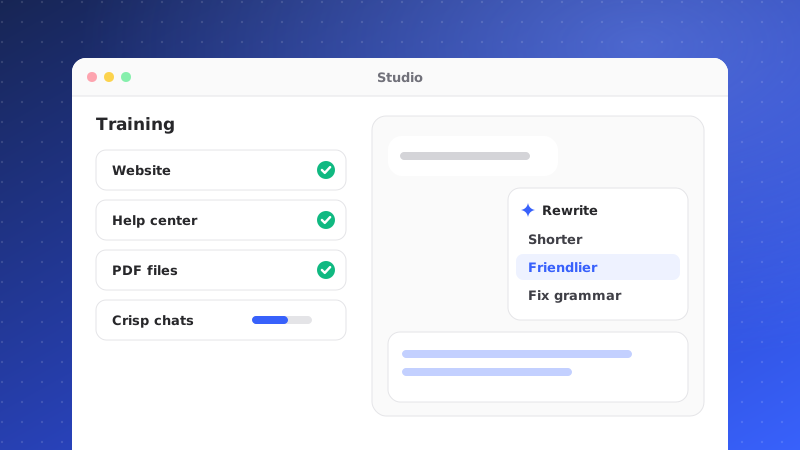 November 2026ImprovedOnboarding trains on all your sources, and AI rewrites in the composerNew brands learn from the text, Q&A and files you add during setup, the composer's rewrite tools use real AI, and the model picker shows what is available.
- Onboarding: the training step now learns from the text, Q&A and files you add during setup, not only your website pages. Retries skip what was already learned, and a file lost along the way is named with a link to upload it instead of being dropped silently.
- AI rewrites: the rewrite tools in the Helpdesk composer now use your workspace's AI, with the same plan and credit checks as every other AI call.
- Model picker: models that cannot answer yet are shown as Coming soon and cannot be selected.
- Integrations: which integrations a workspace has installed is now stored for the workspace, so everyone on the team sees the same apps.
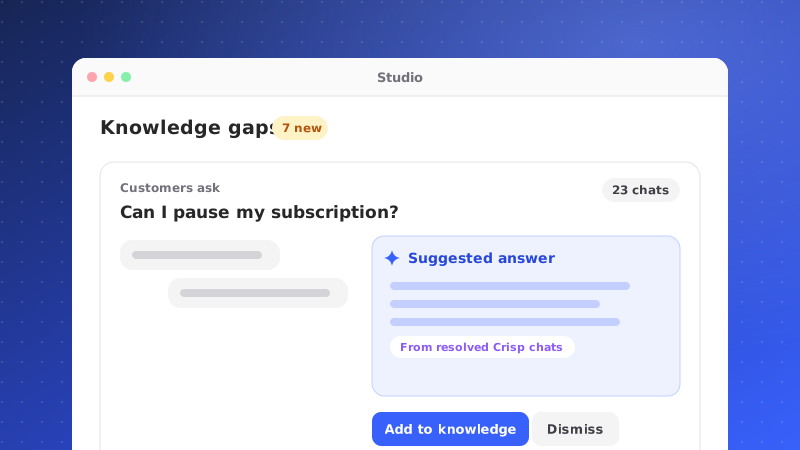 October 2026AddedKnowledge gaps from real conversations, and suggestions from resolved Crisp chatsQuantCX records the questions your AI could not answer, groups them into knowledge gaps you can resolve, and suggests knowledge from resolved Crisp conversations.
Knowledge gaps are now built from evidence. When the live AI cannot answer a question from your knowledge, QuantCX records it, groups repeats of the same question, and counts how often it comes up. Conversations your team handled are not counted as gaps.
- Open a gap to see the questions behind it, test an answer, then resolve or dismiss it.
- Gaps are kept separately for prospects and for verified clients.
- From resolved Crisp conversations, QuantCX can analyse a sample and propose knowledge as separate suggestions. Nothing is added until someone on your team reviews and accepts it.
Find them under the brand's Analytics, next to failed sources.
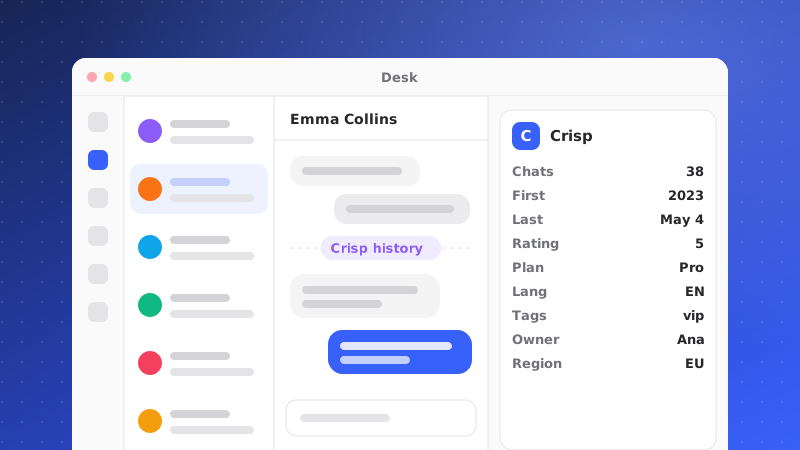 October 2026ImprovedCrisp conversation history in the HelpdeskPast Crisp conversations now appear read-only in the Helpdesk, kept in sync automatically, and the inbox no longer waits for them to load.
If you connect Crisp, your Crisp conversation history now appears in the Helpdesk, read-only, next to your QuantCX conversations, so your team sees the whole story with a customer in one place.
- New and changed Crisp conversations are synced automatically, and the import of older history runs in the background.
- The Helpdesk loads its own conversations first and adds Crisp history progressively, so the inbox opens straight away even for large histories.
- Setting up the Crisp webhook is clearer, and the inbox sync is more reliable.
Connect Crisp from Integrations.
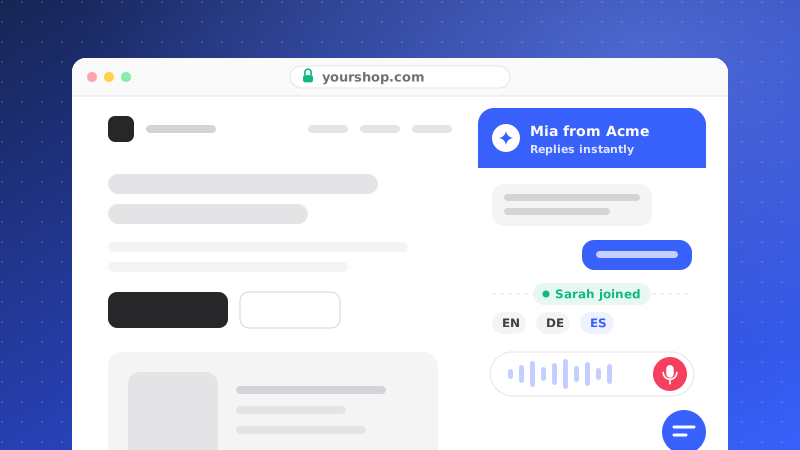 October 2026AddedImprovedChat widget: dictation, clearer hand-offs and better language supportVisitors can dictate messages, the widget shows when a conversation moves to another team member, and the language picker gains Portuguese.
- Dictation: turn on Voice to text (Dictation) in the Chat Widget settings to let visitors dictate a message using the speech recognition built into their browser.
- Hand-offs: when a conversation passes from one AI team profile to another, the widget now says so, and earlier messages keep the profile that sent them.
- Languages: Portuguese is available as a widget and help language, and the language dropdown in the Chat Widget settings is easier to scan.
- Layout: the message composer stays pinned above the widget's navigation, and avatar borders use the colour you configured.
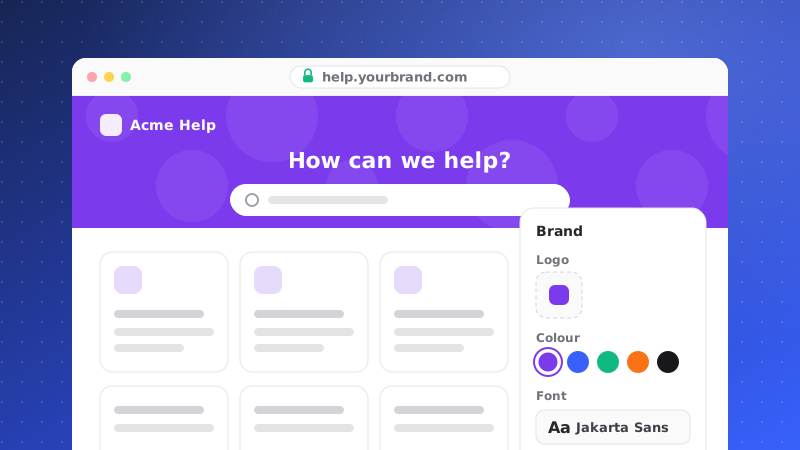 October 2026ImprovedBrand your Help Center: logo, colours, header pattern and fontsGive your public Help Center its own logo, accent and header colour and a header pattern, and let it use your brand's typography.
The public Help Center can now look like your brand rather than a default theme. In the Help Center's Site settings you can set:
- Logo: use the brand's logo, upload a different one, or show the name as text.
- Accent and header colours: header text switches between light and dark automatically so it stays readable on any colour.
- Header pattern: dots, grid, diagonal lines, or none.
- Typography: the Help Center uses the fonts set for your brand.
Rich text in articles now keeps its formatting on the public site, and media in articles and brand settings display more cleanly.
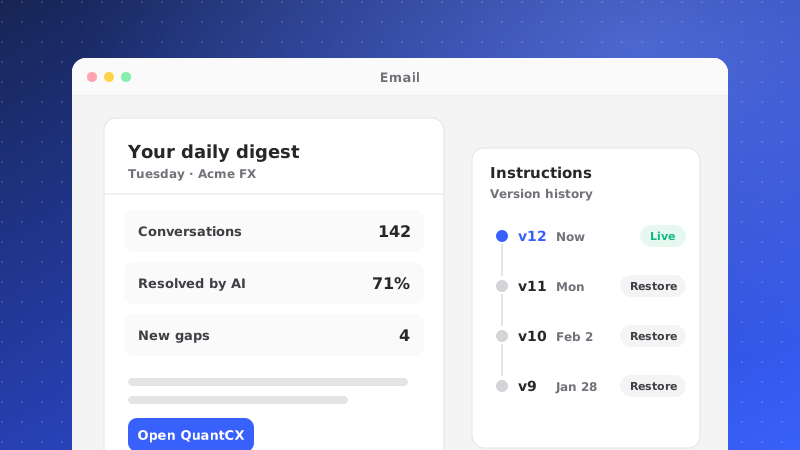 September 2026AddedDaily email digests and instruction version historyGet a daily email of new leads and conversations per brand, and compare any saved version of your AI's instructions with the current one.
Daily digests. In your account's notification settings you can now choose, per brand, to receive a daily email summarising new leads and new conversations. Digests are sent in your own time zone, and each person sets their own preferences.
Instruction history. Every time you save your AI's instructions, QuantCX keeps a version. On the Instructions page, open the comparison to put any saved version side by side with the current configuration, or with your unsaved draft. The comparison covers general instructions, guardrails and client instructions, so you can see exactly what changed before you publish.
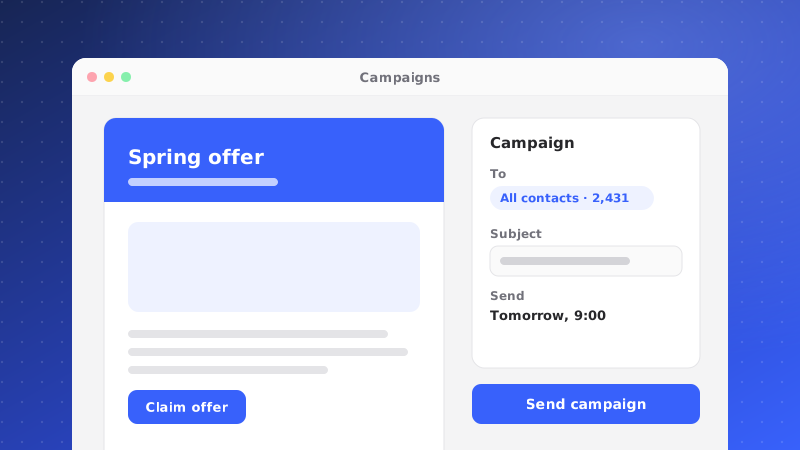 September 2026AddedEmail campaigns to your contactsSend an email to a group of contacts from Contacts > Campaigns, using saved templates, with per-recipient delivery status and one-click unsubscribe.
You can now send outbound email campaigns from QuantCX. Open Contacts > Campaigns to create one.
- Pick the recipients from your verified contacts and write the subject and body, or start from a saved template. Contacts who unsubscribed are left out automatically.
- Campaigns go out from your workspace's configured email sender, within its daily sending limit.
- Every email carries an unsubscribe link, and the opt-out is kept for all future campaigns.
- Each campaign shows its progress and per-recipient status: queued, sent, delivered, failed, skipped, bounced or complained.
Your email sender must be set up under Settings > Channels & API > Email before a campaign can be sent.
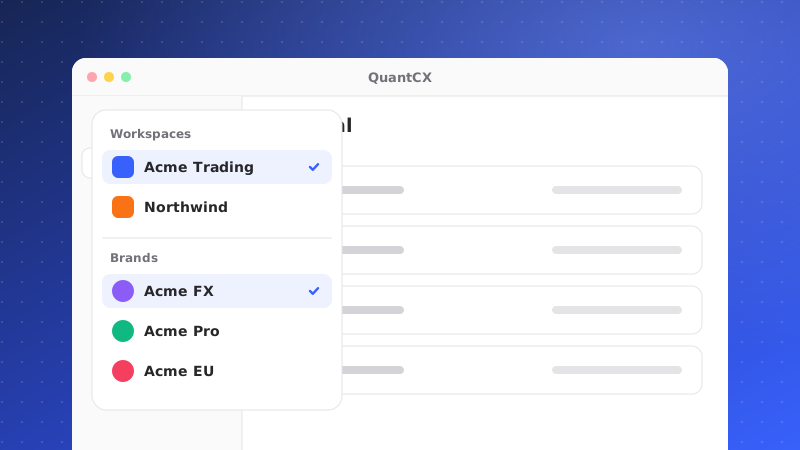 September 2026ImprovedOne switcher for workspaces and brandsThe sidebar now has a single switcher that lists your workspaces with each workspace's brands underneath.
There used to be two pickers in the sidebar: one for the workspace and one for the brand. Now there is one.
- It names the workspace you are in, or the brand when the workspace runs several.
- Its menu lists the workspace's brands indented beneath it, so switching brand and switching workspace happen in the same place.
- A workspace with a single brand never sees a brand row, because there is nothing to choose.
- In the Helpdesk, the brand filter is hidden for single-brand workspaces too.
Contacts and Analytics now sit with the workspace they belong to, and the Helpdesk appears once in the menu instead of three times.
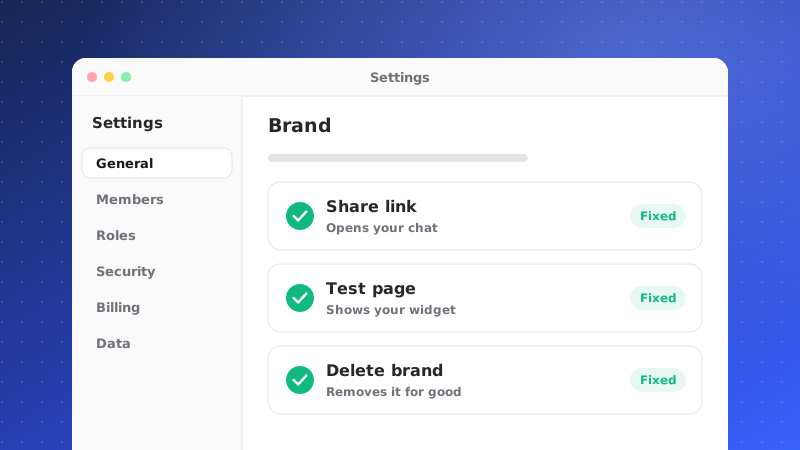 September 2026FixedShare Link, test page and Delete brand now do what they sayThe Share Link opens a working hosted chat page, the test page talks to your published widget, and Delete brand really deletes the brand.
- Share Link: links copied from the Share dialog now open a hosted chat page with your widget, already open and full screen. An unpublished or unknown brand shows a not-found page. Copy a new link copies the link.
- Test page: it now embeds your published widget, with the same settings and the same AI answers your customers get, for the brand you opened it from.
- Delete brand: deleting a brand now removes it with its help center, articles, widget settings, knowledge, personas and voice. You type the brand's name to confirm. Slack and Crisp connections stay installed with the brand cleared. Only owners and admins can delete.
- Notifications: the Mentions tab, which could never show anything, is gone.
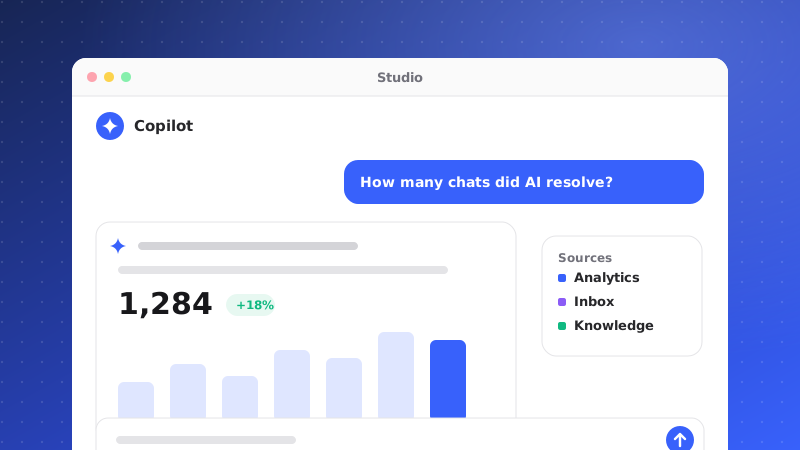 September 2026AddedCopilot answers questions about your workspaceCopilot now replies for real, using your brand's name and instructions and live counts of your contacts, tickets and conversations.
Copilot used to answer every message with a preview notice. It now replies through the same AI models as your drafts, and its usage is metered like every other AI call.
What Copilot can see is deliberately limited: your brand's name and instructions, the brands in your workspace, and how many contacts, tickets and conversations you have, including how many are still open. It does not receive anybody's personal data, ticket subjects or message text. When you ask for something it cannot see, it says so instead of guessing.
Copilot's replies are also cleaner: no stray Markdown asterisks in the answer.
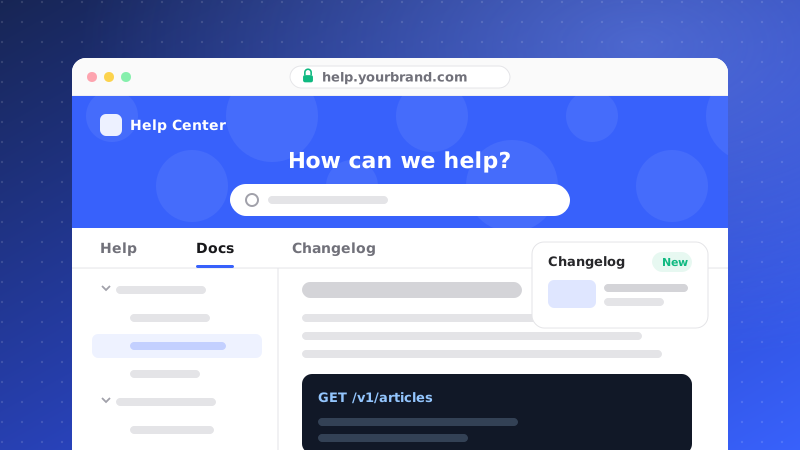 September 2026AddedYour Help Center can now host documentation and a changelogTurn on Docs and Changelog sections next to your help articles: an ordered documentation tree, and dated release notes you can send to your clients.
The Help Center is no longer only for help articles. Under Help Center > Site > Sections you can turn on two more sections, and their tabs appear only when they are on.
- Docs: pages arranged in a tree you order yourself, with a sidebar, breadcrumbs and previous/next links that follow the reading order.
- Changelog: entries listed by date and filed under a version. Publishing and notifying are separate steps: after you publish an entry you can email it to the verified contacts of the clients the brand serves (contacts can opt out) and post it to the brand's mapped Slack channels.
- Docs pages and changelog entries never show up among your help categories or on the Help Center's front page.
The Site tab now comes first in the Help Center editor, followed by Articles, Docs, Changelog and Insights.
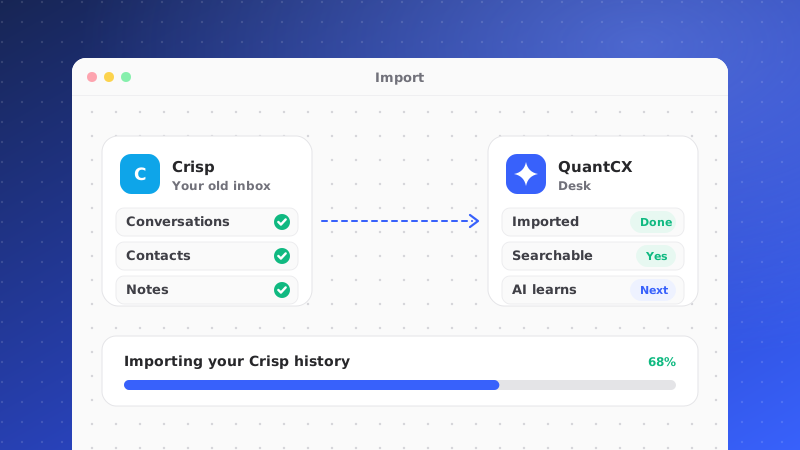 September 2026AddedBring your Crisp history acrossConnect a client's Crisp and import every contact plus the last 90 days of conversations.
Moving a desk is only worth doing if the history comes with it. Connect a client's Crisp under Settings > Integrations and QuantCX imports every contact and the last 90 days of conversations, filed under that client.
The import runs a few pages at a time and picks up where it stopped, so a large desk is a matter of pressing it again rather than leaving a tab open. Add the web hook it shows you and new messages keep arriving after the history has landed.
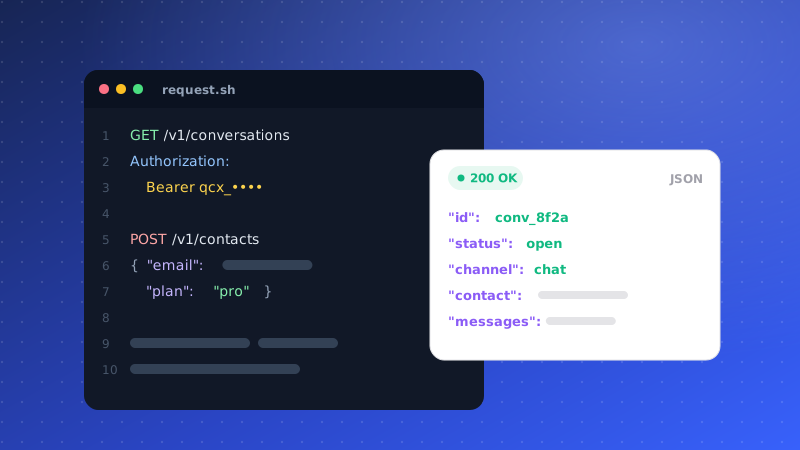 September 2026AddedAn API for your workspacePush your users into QuantCX from your own systems, and read contacts, tickets and conversations back out.
Settings > API keys issues a key for your workspace. A key reaches that workspace and nothing else.
POST /api/v1/contacts takes up to a thousand people at a time. Send the same person again and they are updated, not duplicated: QuantCX matches on the id from your own system first and the address second, so somebody who arrives from two places stays one person.
GET is there for contacts, tickets and conversations, with updated_since and a cursor, so keeping another system in step is a loop rather than a full export.
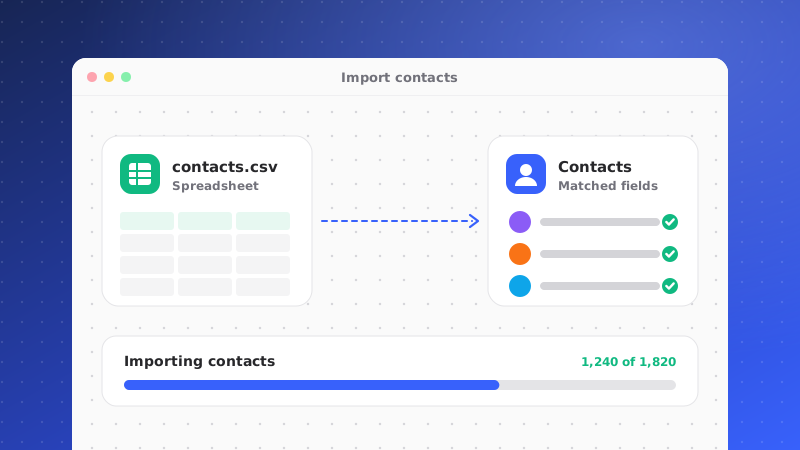 September 2026AddedImport contacts from a spreadsheetUpload a CSV and QuantCX merges it into your contacts rather than duplicating them.
Contacts > Import takes a CSV. Columns are matched loosely, so phone, phonenumber and mobile all land in the same place, and a client column lets one file carry several clients.
Somebody already in your list is updated rather than added twice, and a blank cell keeps what was already there. A row we cannot use is reported by line number and the rest of the file still imports.
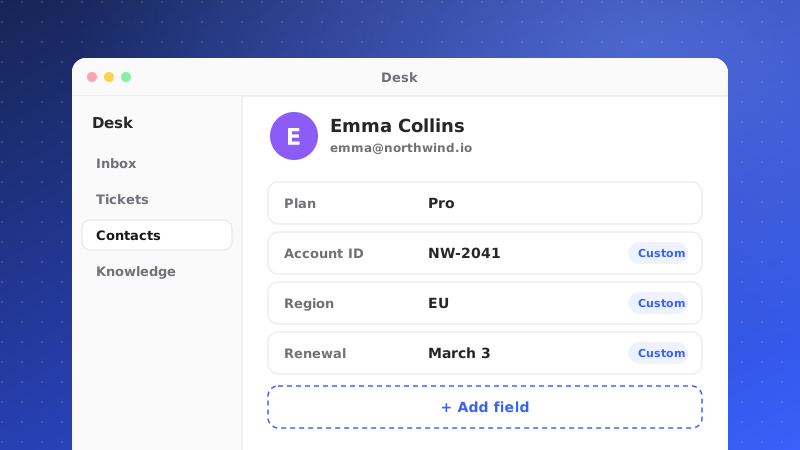 September 2026AddedFields of your own on a contactKeep what you know about somebody that no helpdesk schema would have guessed.
Contacts > Manage attributes adds fields of your own: an account tier, an MT5 login, whatever your desk actually tracks.
They become columns on Contacts, columns the CSV import reads, and keys the API accepts. Removing a field takes it off the list and leaves the values on your contacts alone.
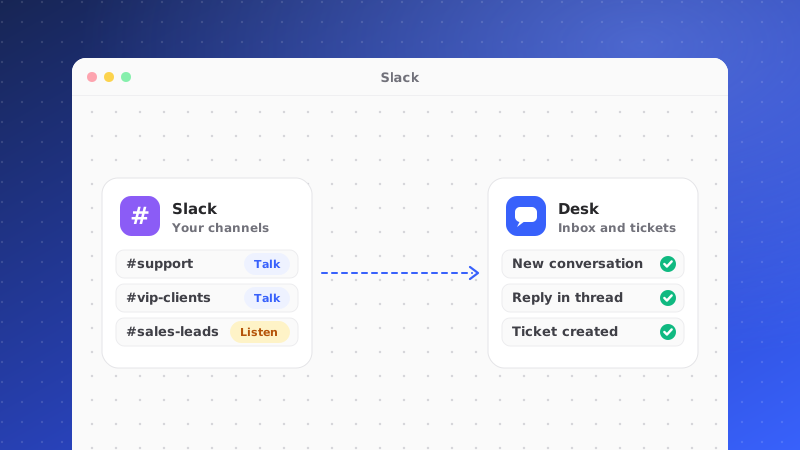 September 2026ChangedSlack channels you talk to, and channels you listen toIntake is now its own switch, so a channel you escalate into stops filling your inbox.
A mapped Slack channel used to mean two things at once: we can post there, and everything said there becomes a conversation. For a channel your team only escalates into, the second was never right.
Intake is now a separate switch, and it is off unless you turn it on. A channel you post to stays a channel you post to. One channel takes intake in one workspace, which is what stops the same thread arriving twice.
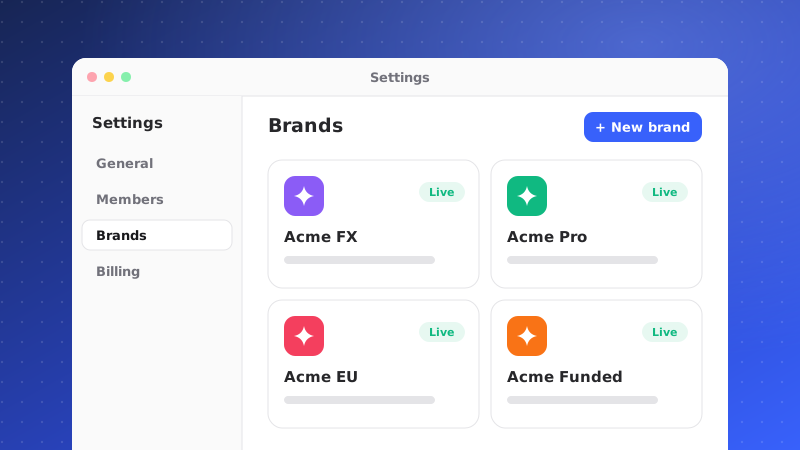 September 2026ChangedAgents are now BrandsThe thing that owns a widget, a help center and an AI is called what it is.
One word was doing four jobs: the brand that answers, the role a teammate has, the kind of message they send, and the AI itself.
The container is now a Brand. Your team are still agents, which is what every other support tool calls them, and each brand still has its own AI agent. Nothing moved; the menu simply says what it means.
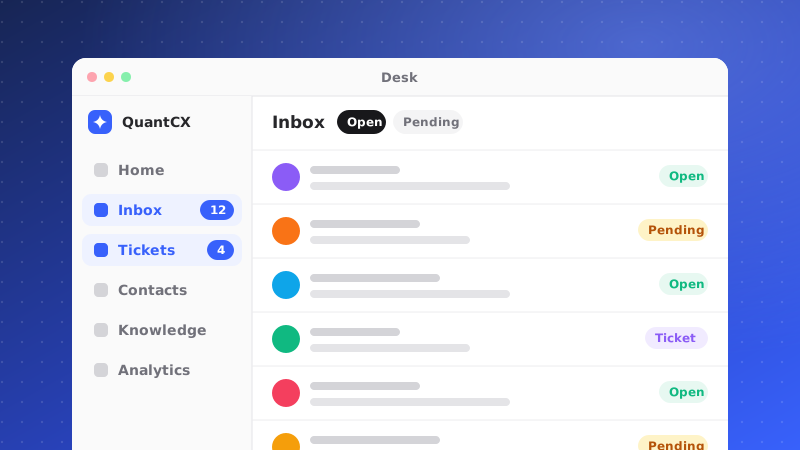 September 2026ChangedInbox and Tickets are in the menuThe two screens you open this product to use are no longer the hardest to find.
The sidebar led with setup and reporting, and reached the inbox through a link at the very bottom that opened in another tab.
Inbox and Tickets now lead the menu. Brand settings and AI Agent are separate entries, so the place that holds your domain and your webhooks is no longer filed under a heading about AI.
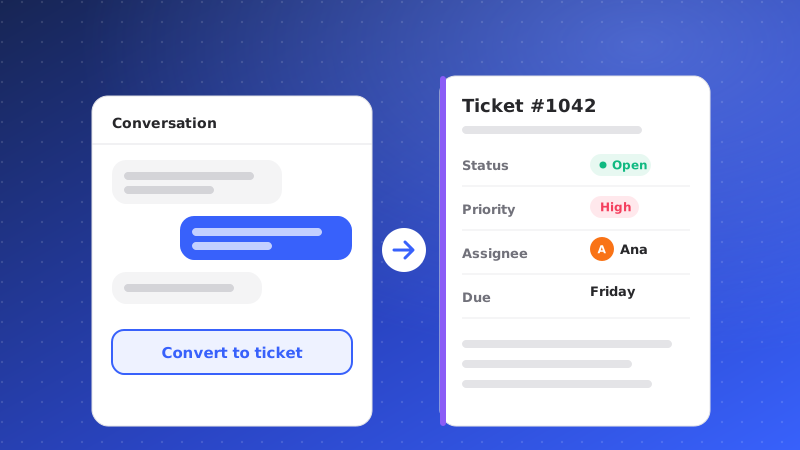 September 2026FixedConvert to ticket worksTurning a conversation into a ticket now does what the button says.
Converting a conversation into a ticket failed silently: the button did nothing and said nothing. Tickets made this way were never created at all.
Fixed, and the dialog now tells you when something goes wrong instead of closing as though it had worked.
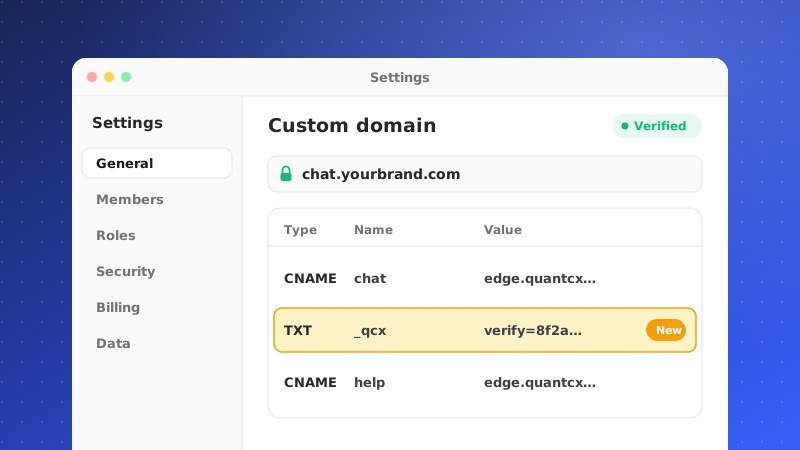 September 2026FixedCustom domains: the record we were not showingSetting up your own help center address no longer stalls on a record we never asked for.
A custom domain could sit on Failed with advice to remove it and add it again, which led straight back to the same place.
The domain was ours the whole time. What was missing is a second DNS record proving the domain belongs to you, which is asked for whenever a domain has not been used with us before. That record is now shown next to the CNAME, and only a genuinely missing registration says Failed.