
Inviting your team
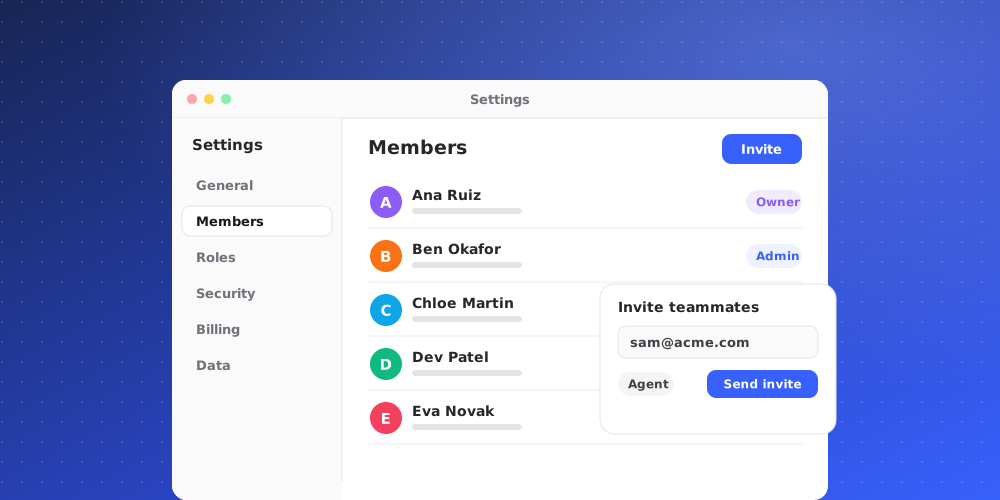
Everyone who works in QuantCX needs their own account in your workspace. You add people by inviting them by email. Each invite carries a role, which decides what that person can see and change.
Send an invite
- Open Settings from the bottom of the icon rail, then Team. The Members tab opens.
- Choose Invite members.
- Enter an email address and pick a Role for it. To invite several people at once, choose Add member and fill in another row.
- Choose Send invites.
Each person gets an email with a link to join. The link is valid for 7 days. QuantCX also shows the link in the dialog with a Copy link button, so you can send it yourself, for example in your team chat. If outgoing email isn't set up for your workspace yet, the dialog says so next to the address, and copying the link is the way to get it to them.
When they open the link, they sign in or create an account and land in your workspace with the role you chose.
Which role to pick
You can invite people as Admin, Manager, Agent or Viewer. The Owner role is never given through an invite.
- Admin: access to core features and settings. Invites and manages managers, agents and viewers.
- Manager: runs helpdesk operations, knowledge and Help Center articles. Invites and manages agents and viewers.
- Agent: works the helpdesk and answers tickets and chats.
- Viewer: read-only access to resources and analytics.
You only see the roles you are allowed to hand out. An admin can't invite another admin, for example, and a manager can only invite agents and viewers. You can change someone's role later from the Role column on the Members tab.
Seats
Your plan includes a number of seats, and pending invites count towards them. When every seat is taken, the invite dialog tells you so. Revoke a pending invite or remove a member to free a seat, or change your plan under Settings > Billing.
Manage pending invites
People you invited show on the Members tab as Pending until they join. Open the menu at the end of their row to:
- Copy a new link: create a fresh link, for example when the first one expired.
- Revoke invite: cancel the invite. The old link stops working.
If an address is already a member or already has a pending invite, QuantCX tells you instead of sending a second one.
Remove someone or leave
To take someone out of the workspace, open the menu on their row and choose Remove from workspace. On your own row, the same menu offers Leave workspace. Leaving takes away your access straight away; someone has to invite you again for you to come back.
Availability
The Availability section on the same page controls how teammates show as available for new chats. Turn on Let teammates set their own status if people should switch their own availability. Automatic ticket assignment only picks people who are available.