
Your account, preferences and notifications
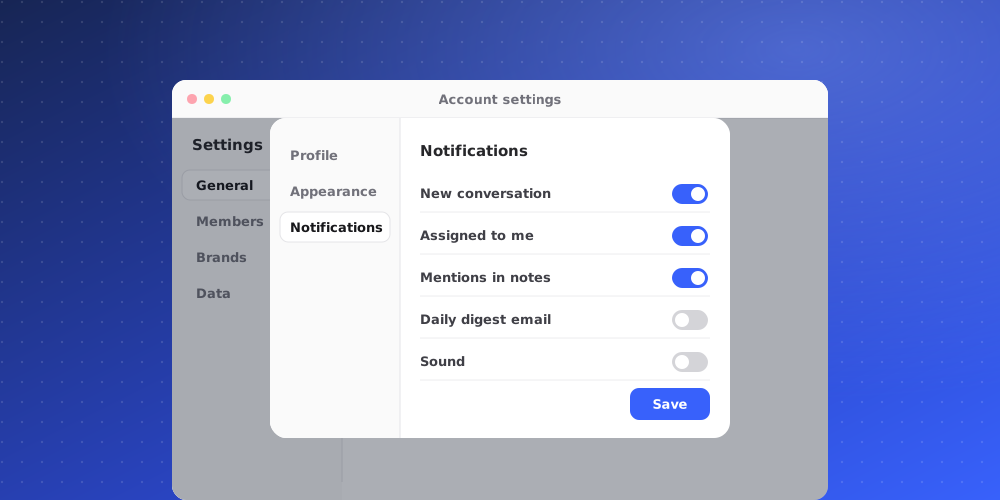
Your account settings are personal. They follow you into every workspace you belong to and don't change anything for your teammates.
Open your account settings
Click your avatar and choose Account settings. You can also reach Profile and Preferences from the Your account section at the bottom of the Settings sidebar. The dialog has five sections: Profile, Preferences, Notifications, Security and Connected apps.
Profile
Set your first and last name, your display name and your photo. Your team sees these on conversations, notes and assignments. You can also change the email address you sign in with; QuantCX sends a confirmation code to the new address before it switches.
Preferences
- Theme: Light, Light with dark frame, Dark or System. System follows your device: the dark frame on a light device, Dark on a dark one.
- Interface size: Small (90%), Default, Large (110%) or Larger (125%). This scales text and controls everywhere in the app.
- Default landing page: whether a workspace opens on Home or the Inbox. Inbox needs a plan that includes the Helpdesk; otherwise Home opens.
- Reply send shortcut: how you send a reply in Inbox chats, with Enter or with ⌘/Ctrl + Enter. The other key adds a new line.
- First day of the week: Monday, Sunday or Saturday, for calendars and date pickers.
- Timezone: used for message times, daily digests and reports. Search for your city or zone.
Changes save as soon as you make them.
Notifications
Choose Notifications in the avatar menu, or the section of the same name in the dialog. There are two events, each with an Email and an In-app switch:
- Assigned to me: a ticket or chat is assigned to you.
- Replies on my tickets: a customer replies on a ticket or chat. Emails are only sent for the ones assigned to you.
In-app notifications appear under Updates in the Desk sidebar.
Daily digests
Under Daily digests you can turn on a morning email per brand, sent at 08:00 in your time zone, and only when that brand had activity the day before. Each brand has two switches: Identified leads (new conversations where the visitor shared an email address) and Conversation activity (new and still-open conversation counts).
Sound notifications
While you are in the Desk, the avatar menu also has a Sound notifications switch, so you hear new activity while you work.
Security
Change your password and see the devices signed in to your account. Sign out other sessions signs out everywhere except the device you are using. If you sign in through your company's SSO, there is no QuantCX password to change.
Connected apps
This lists AI apps, such as Claude, ChatGPT or Cursor, that you connected to a workspace. They act as you, with your role's permissions.