
Translate your Help Center into other languages
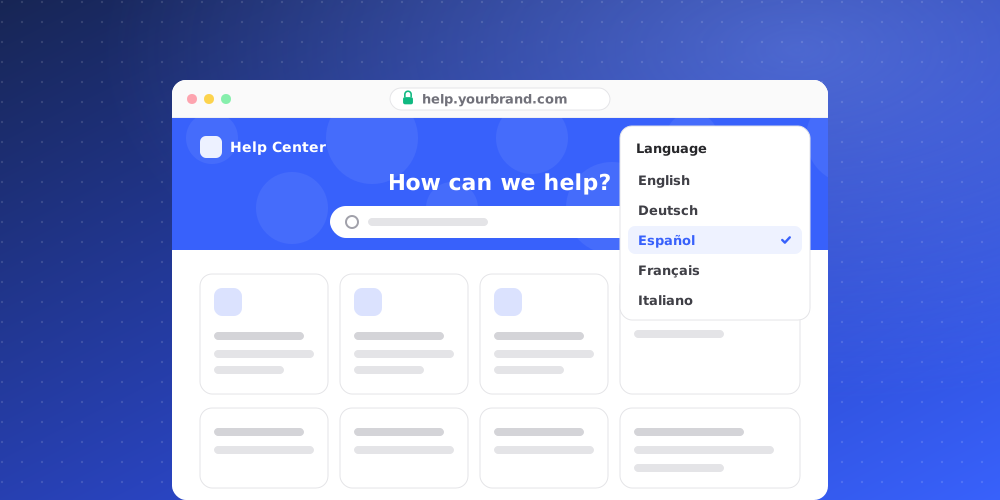
You write each article once, in one language. QuantCX translates every published article and every category name into the languages you choose, and readers get their language on the help site and in the widget.
Choose your languages
- Open Studio > Help Center > Languages.
- Under Written in, pick the language your articles are written in. Changing it later does not rewrite your articles.
- Under Also offer, click each language you want to add. You can offer up to 12.
- Click Save changes.
Translate
After saving, the page shows how far along each language is, counted across your published articles and categories. Click Translate what's missing to translate anything that has no translation yet or is out of date. Progress shows as it runs, with how many are done, failed or still to go.
If a round stops before it finishes, press the button again to carry on where it stopped.
Translations for one article
Each article's editor has a Translations panel listing every language you offer, with a status such as Up to date, Out of date with this article or Not translated. From there you can:
- Click Translate or Translate again next to a single language.
- Click Update at the top of the panel to bring every language that is behind up to date.
What readers see
- Anything not translated yet is shown in the language it was written in, so nobody sees a blank page.
- A translation that is out of date is still shown to readers of that language until it is updated. An answer a few edits behind is better than one they can't read.
- If an article fails to translate, it is shown in its original language. Open it on the Articles tab to try again.
Remove a language
Click a selected language under Also offer to remove it, then save. Readers no longer see that language, but the translations are kept, so adding it back later costs nothing.
Tips
- Finish and publish articles before translating. Drafts are not translated.
- After a big round of edits, check the language progress and run Translate what's missing.