
Write and publish help articles
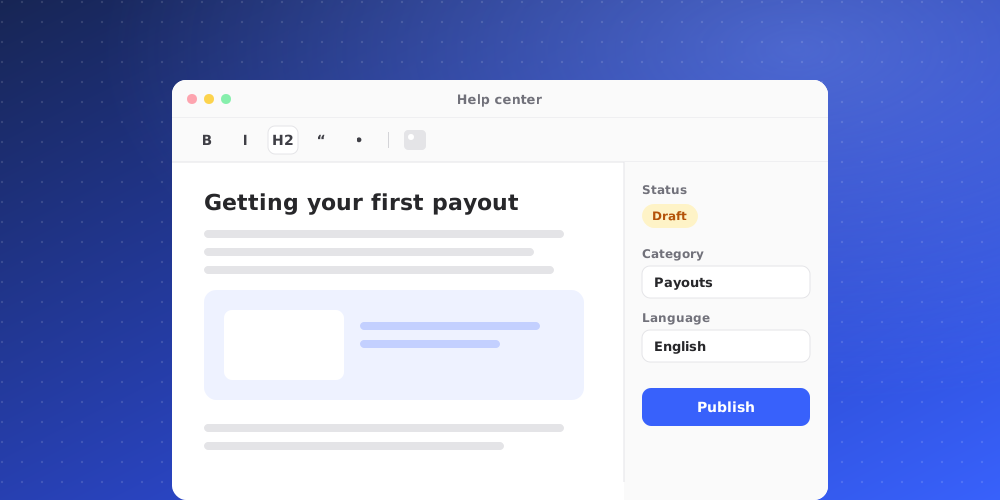
Your Help Center articles do three jobs at once. They appear on your public help site, they show in the widget's Help tab, and the AI learns every published article so it answers from the same text.
Before you start
Every article belongs to a category, so create at least one category first. Open Studio > Help Center > Articles and click New category. Only owners and admins can change articles.
Write an article
- On the Articles tab, click New article.
- Enter a Title and pick a Category.
- Add a Summary: two lines shown under the title in lists and search. Leave it empty to use the article's first lines.
- Write the article body. The preview on the right shows the article as the widget's Help tab draws it.
- Click Create article.
The article's URL name is made from its title when you create it and stays the same afterwards, so links to it keep working even if you rename it.
Choose the audience
Use Audience to decide who the article is for:
- Everyone and Prospects only: visitors see the article in the widget's Help tab and on the hosted site, and the AI answers prospects from it.
- Clients only: only the AI uses the article, and only with verified clients. It stays off the widget's Help tab and the hosted site.
Publish or keep as a draft
The switch at the top of the editor shows Published or Draft. A draft is hidden from visitors, and the AI does not answer from it. When you save a published article, visitors see the new version right away and the AI learns it.
The widget's Help tab appears once at least one article is published, as long as Show Help Center tab is on in the Chat Widget's Home settings.
Find and filter articles
On the Articles tab, use the search box and the status filter (All articles, Published, Drafts) to find what you need. Each article shows a Published or Draft label.
Import an existing FAQ
If you already have an FAQ on your website, click Import FAQ and paste the page of your site that links to each FAQ category into FAQ page address. Every category and its articles are copied in, with their formatting and tables. Reading every article can take up to a minute.
- Imported articles are published and show in the widget right away.
- Nothing already in your Help Center is deleted.
- Importing again refreshes articles with the same URL name and keeps whether each is published. Edits you made to those articles in QuantCX are replaced.
Delete an article
Open the article and click the delete button at the top. It disappears from the widget's Help tab. This can't be undone.