
Put your Help Center on your own domain
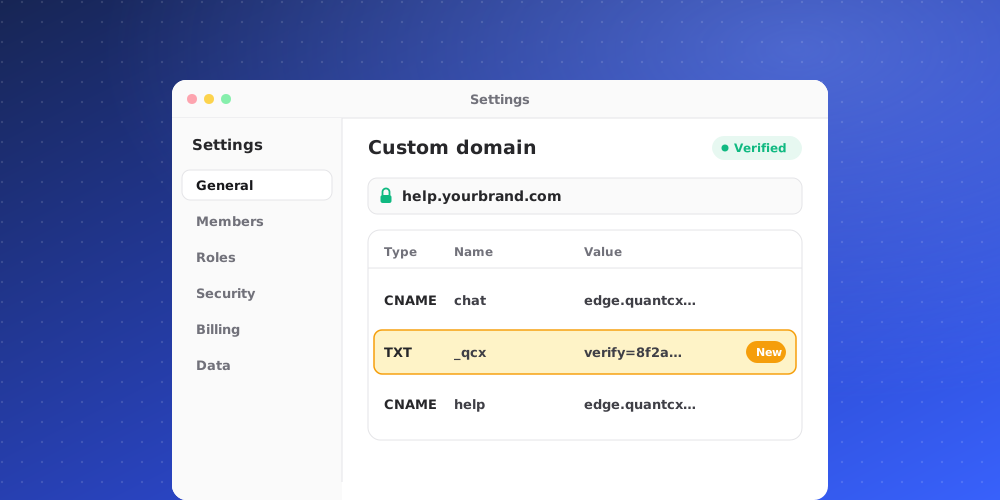
Your help site starts at help.quantcx.com/your-address. You can serve it from an address of your own, like help.yourbrand.com, instead. The original address keeps working and sends visitors on to the new one, so nothing anyone has linked or bookmarked breaks.
Step 1: Create and publish the site
- Open Studio > Help Center > General.
- Set the Address: 2 to 40 lowercase letters, numbers and dashes. This is the part after
help.quantcx.com/. - Turn the Public help center switch to Published.
- Click Create site (or Save changes if the site already exists).
If you save while the switch shows Offline, the site stays offline until you publish it. Publish at least one article first, or the site will be empty.
Step 2: Choose your domain
- Open the Domain tab.
- Under Domain, enter your address, for example
help.yourbrand.com. - Click Save domain.
Use a subdomain such as help., support. or docs. A bare domain like yourbrand.com can't be used.
Step 3: Add the DNS record
QuantCX shows the record to add under Add this record at your DNS provider:
- Type: CNAME
- Name: the first part of your domain, for example
help - Value:
help.quantcx.com - TTL: Automatic, or 300
Most providers want the name on its own (help). A few want the whole domain. If the record reads back with your domain repeated at the end, enter just the first part instead.
Leave the record unproxied. On Cloudflare, that means DNS only (the grey cloud, not the orange one). A proxied record hides the domain and the certificate is never issued.
If the domain hasn't been used with QuantCX before, you'll also see One more record: proof the domain is yours. Add the record it shows alongside the CNAME, then press Verify. Some registrars want the name without the domain on the end, for example _vercel.
Step 4: Verify
DNS usually spreads within an hour and can take up to a day. Once the record is in place, click Verify. The status label shows where things stand:
- Not set: no domain saved yet.
- Pending: waiting for the DNS record or verification.
- Live: your help site is served on your domain. Use Open the site to check it.
- Failed: the domain is no longer registered with QuantCX. Remove it and add it again.
There is no certificate to install. QuantCX issues one for your domain as soon as the record resolves.
Remove the domain
Click Remove on the Domain tab. Your help site goes back to its help.quantcx.com address.
This domain is only for the Help Center. To serve the chat widget and chat link from your own domain, use Custom Domains in your brand's settings.