
Let the AI call your systems with AI Actions
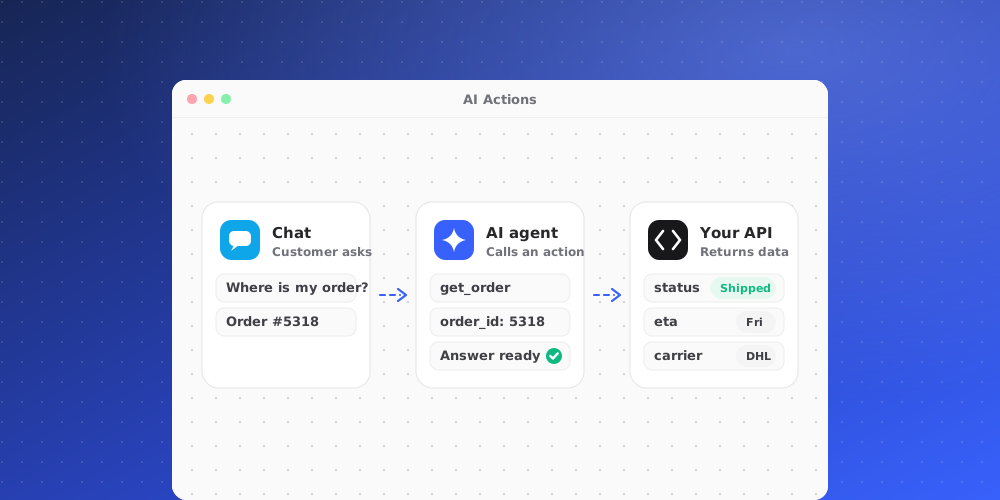
AI Actions let a brand's AI call one of your APIs during a live chat, for example to look up an order. You describe the call once. The AI decides when to use it, fills in the inputs from the conversation, and uses the answer in its reply.
Who can manage actions
Owners, admins and managers can create actions, and approve or reject requests that need approval. Your plan sets how many actions you can have and how many runs you get each month.
Create an action
Open the brand in Studio, go to AI Agent > Actions, and click New action. Fill in:
- Name, for example "Look up order", and a Tool name such as
look_up_order. - When the AI should use it: plain instructions, for example "Use when a customer asks where their order is. Needs the order number."
- Method and HTTPS URL. Only the path and query can contain inputs, for example
https://api.example.com/orders/{{order_id}}. - Inputs (JSON Schema): the values the AI must collect. Your developers usually write this.
- Headers (JSON) and Secret: put your API key or token in Secret and refer to it in a header as
{{secret}}, for exampleBearer {{secret}}. The secret is stored encrypted and never shown again. - Timeout (s).
Only public HTTPS endpoints on port 443 are allowed. Private networks, cloud metadata addresses and redirects are blocked.
Control when it runs
- Enabled: only enabled actions are offered to the AI.
- Require approval before the AI runs it: the request waits for a teammate instead of running at once.
- Only for verified contacts (signed identity): the action is offered only when your website has proved who the visitor is with a signed identity token. Turn this on for anything that reads or changes a customer's own data. Identity verification is set up in the brand's Brand Settings > Security.
Approving requests
When the AI asks to run an action that needs approval, nothing is sent and the customer is told their request is being reviewed. The request appears under Waiting for approval.
- Approve and run sends the request now. The customer is told the outcome, and the details are added to the conversation as an internal note.
- Reject sends nothing. The customer is told a teammate will follow up.
Requests nobody decides expire and can no longer be approved. Reply to the customer from the conversation instead. Past decisions are listed under Recent decisions.
Test it
Click the test button on an action (next to edit and delete), enter Test inputs (JSON) and click Run test. This sends a real request and counts toward this month's runs.
The run log
Recent runs lists every attempt with its result, such as Succeeded, Failed, Refused, Awaiting approval or Over plan limit. Sensitive inputs are masked and response bodies are not stored. Action runs and approvals also appear in Settings > Team > Audit Log.
Developers can find the input schema rules and examples under Documentation.