
Verified and Unverified contacts
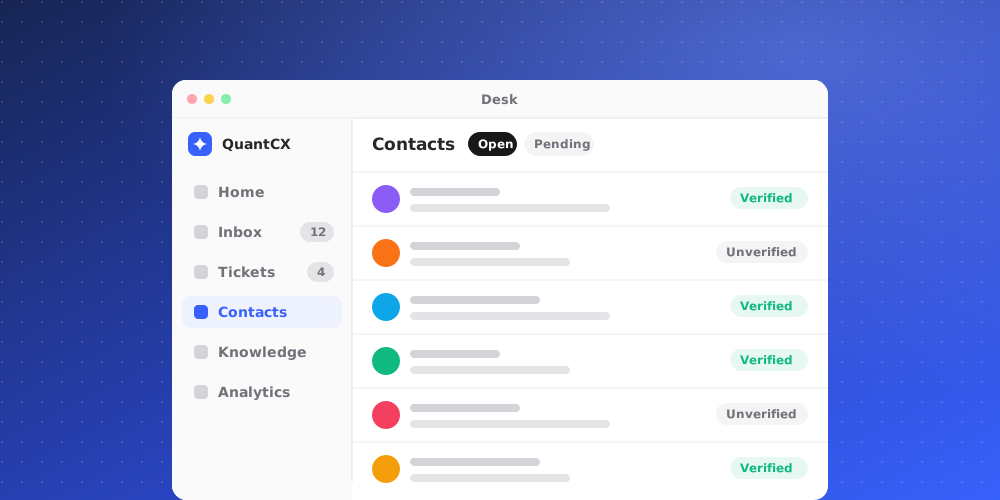
Anyone can type a name and an email into a chat widget. QuantCX shows your team whether that identity was proved by your own website, so you know when it is safe to discuss someone's account.
What the badges mean
- Verified (green, with a tick): your website signed in this visitor and told QuantCX who they are. The name and email come from your own system.
- Unverified (grey): the name and email are the visitor's own word. Check who they are before sharing account details, payment information or anything personal.
You see the badge next to the customer's name in the conversation header, and beside their email in the Customer section of the Details panel. Hover over it for a short explanation.
The Unverified badge only appears on chat widget conversations, because that is the only channel where identity can be signed and wasn't. Email and Slack conversations carry their own proof, the sending address or the Slack account, so they show no badge.
What changes when a contact is verified
- The AI answers the visitor as a known client rather than a prospect. It can use knowledge and instructions you've marked for clients.
- AI Actions marked Only for verified contacts (signed identity) become available to the AI in that conversation, and stay off for everyone else.
- Custom apps in the side panel are told the contact is verified, along with your own user id for them.
A verified visitor stays verified for conversations they start within 12 hours. If someone on your team changes the contact's email, the verification is cleared, because it no longer matches what your site signed.
Turn on identity verification
Verification needs a small change on your website, so it is usually done by your developer.
- Go to Studio > Brand Settings > Security and find Identity verification.
- Choose Generate secret. Copy it now and store it on your server, for example as
QUANTCX_IDENTITY_SECRET. It won't be shown again. - When a signed-in user loads a page with the widget, your server signs a short-lived token for them with that secret (HS256, expiring within 10 minutes) containing their user id as
sub, and theiremailandname. - Your page passes the token to the widget with
QuantCX("identify", { token }). When the user signs out of your site, callQuantCX("logout")so the next person on that browser starts fresh.
Tokens signed with any other algorithm, with a wrong signature, or that are expired are refused, and the chat stays Unverified.
Require verified identity
Turn on Require verified identity to ignore names and emails the widget sends without a valid token, so only your site can label a conversation. Forms the visitor fills in still work.
Rotate or delete the secret
Choose Rotate secret if the secret may have leaked. The old secret stops working at once, so update your server straight away. Deleting the secret means tokens are no longer accepted and new chats show as Unverified.