
The Desk side panel: Details, Apps and Copilot
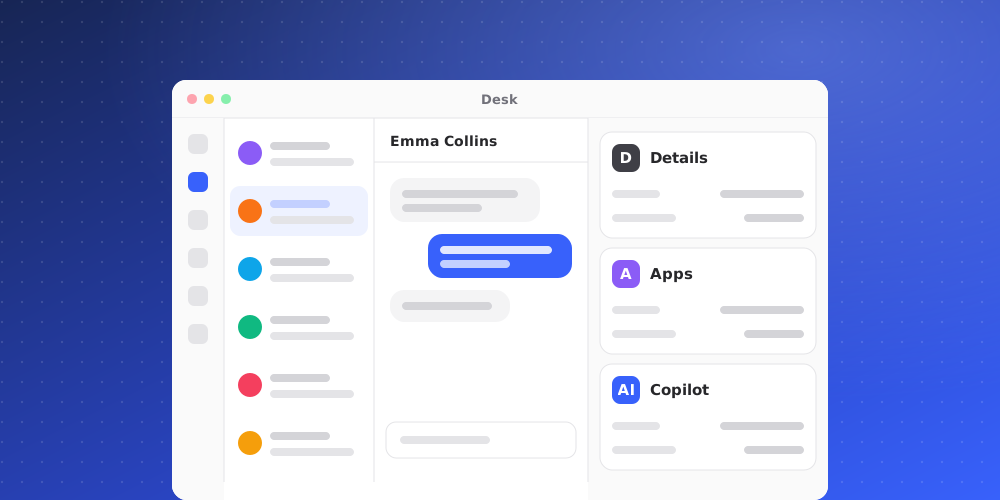
When you open a conversation in the Inbox or a ticket, a panel on the right shows everything about the customer and the case. It has a fixed header with the customer's name, country flag and status, and three tabs along its bottom: Details, Apps and Copilot.
On wide screens the panel opens by default. Close it with the X in its header. To bring it back, use the Details or Copilot buttons at the right of the composer's tab row. Drag the panel's left edge to make it wider or narrower.
Details
Details is one list, always open, in five sections:
- Handling: the Status and Assignee. On a chat you also see Handled by, which says whether the AI or a person has the conversation. On a ticket you see Team, Priority and SLA instead.
- Details: Category, the Agent (brand) it came in on, Channel and Started. A chat shows the visitor's Rating if they left one, and a link to its Ticket once converted. A ticket shows its Tags and a link back to the conversation it came from.
- Customer: Email, Country and, when the country has a single time zone, the customer's Local time with a day or night marker. On a chat, choose Edit to correct the name, email or country. When the chat has an email, the change saves on every conversation with that customer.
- Notes: the private notes on this conversation or ticket, newest first. Add a note switches the composer to a note.
- Apps: one row per app that has data for this customer, with a key fact and a status badge. Click a row to open that app in the Apps tab.
Every value with a pill is a control. Click the status, assignee or category to change it.
Conversations imported from Crisp are managed in Crisp, so their details are shown read-only.
Apps
The Apps tab shows one app at a time, picked from the dock of logos above the tab bar.
- QuantCX is always first. It shows the customer's history with you: tiles for Conversations, AI resolved, Tickets and First seen, then a timeline of their conversations and tickets with the one you are on at the top. Click an entry to open it.
- After it come your connected integrations that have data for this customer, such as a store's orders or a marketing profile, and any custom apps your workspace built. An app with no data for this customer isn't listed.
Apps are matched on the customer's exact email address, and only your team sees them; the customer and the AI never do.
A small dot on an app's logo, and on the Apps tab itself, means that app needs a look (red is more urgent than amber). When you open the Apps tab, it starts on the app that needs attention.
The last tile in the dock is a +. It opens Integrations, where an owner or admin can connect more apps.
Copilot
The Copilot tab is your private assistant for the case on screen. It already has the conversation or ticket as context, so you can ask it to summarise, look something up in your knowledge or draft a reply. When it suggests a reply, insert it into the composer, review it and send it yourself.
Press ⌘J (Ctrl+J on Windows), or use Ask Copilot in the top bar, to jump straight to this tab with its input focused.
The panel remembers which tab you had open while you move between conversations.