
Inbox views, sorting and assignment
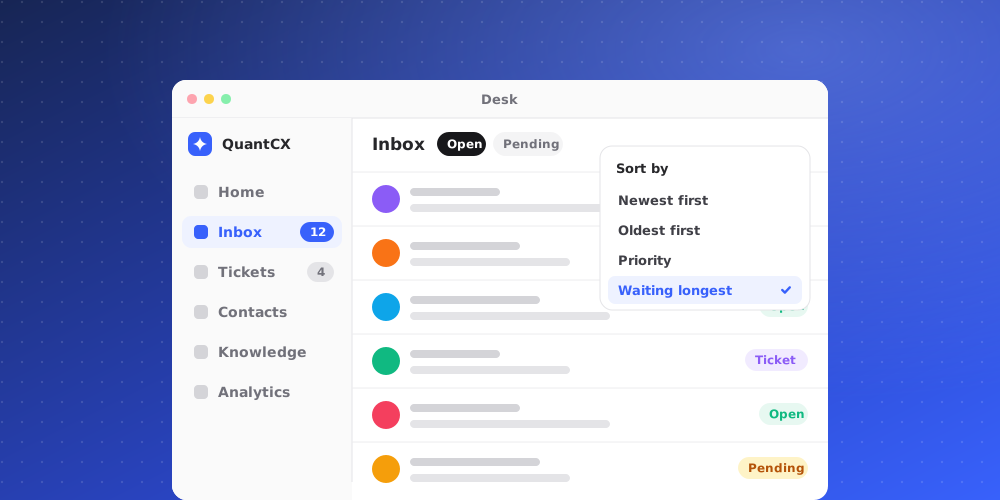
The Inbox holds the chats a person handles: ones the AI handed to your team and ones a teammate took over. The Desk sidebar splits them into views, so each person can see their own work and what still needs an owner.
The Inbox views
Under Inbox in the Desk sidebar:
- Unassigned: open chats nobody owns yet. New hand-offs from the AI land here.
- My Chats: open chats assigned to you.
- All Open: every open chat, whoever has it.
- Resolved: chats that were closed.
The number next to a view counts unread chats in it, not the length of the list. Resolved has no count.
Reading the list
Each row shows the customer's name, how long ago the conversation last changed, and the last message. A small badge on the avatar shows the channel, such as the chat widget, email or Slack. A blue dot and a bolder name mean there are unread messages. A reply arrow before the message means the last word was yours or the AI's. In shared views, a small avatar on the right shows who the chat is assigned to.
Sort the list
Use the sort button at the top of the list to choose Newest activity, Oldest activity or Unread first.
Work across brands
If your workspace has more than one brand, a selector at the top of the Desk sidebar sets the Desk scope. Choose All Brands to see every brand's chats together, or a single brand to see only its conversations. The scope applies to the Inbox and Tickets alike.
Assign a conversation
- To take a chat yourself, open the More actions menu in the conversation header and choose Assign to me.
- To give it to someone else, click the Assignee pill in the Handling section of the Details panel and pick a teammate, or choose Unassigned to put it back in the shared queue.
The assignee list shows the active members of your workspace. The chat then appears in that person's My Chats, and they are notified if they have assignment notifications turned on.
Other actions on a chat
- Mark as unread in More actions puts the chat back to unread, as a reminder to return to it.
- Hand back to AI gives the chat back to the AI agent.
- Ticket in the header converts the chat into a follow-up ticket.
- Resolve closes it, and Reopen brings a resolved chat back.
Set a category
Click the Category pill in the Details panel to sort a chat into one of your workspace's ticket categories, or choose Uncategorized. Using the same categories for chats and tickets keeps your reporting consistent.
Find a conversation quickly
Use the search field in the top bar to jump to a conversation, a ticket or a page without going through the lists.