
Install the chat widget on your website
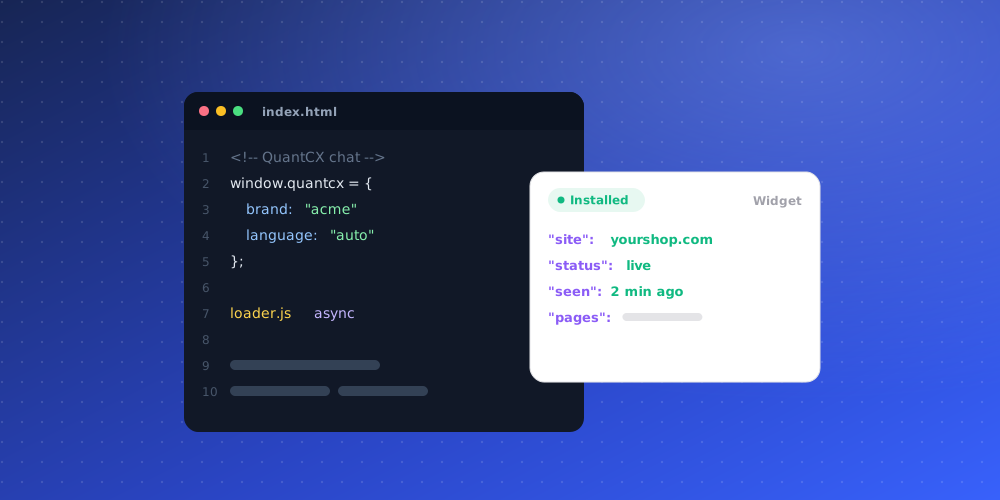
The chat widget is a small script you add to your website. It draws the launcher in the corner of the page and opens the chat window when a visitor clicks it. Messages go to your inbox, and the AI answers from your knowledge if you have turned that on.
Step 1: Allow your website's domain
The widget only appears on websites you list. Any other site that copies your snippet gets nothing.
- Open Studio and choose Chat Widget.
- Open the Installation tab.
- Under Allowed domains, type your domain (for example
example.com) and click Add.
Use *.example.com to cover every subdomain, and list example.com as well if the widget should also show on the bare domain. You can list up to 20 domains, and localhost:3000 style entries work for local testing. If the list is empty, the widget will not show on any website.
Step 2: Save and deploy
Changes in the Chat Widget editor are saved as a draft first. Click Save changes, then use Deploy to publish them. If you deploy with unsaved changes, QuantCX asks whether to Save and deploy so the live widget uses your latest settings. Allowed domains also take effect when you deploy.
Step 3: Copy the embed snippet
- In the Chat Widget editor, click Deploy.
- Under Deploy on, choose Website widget.
- Copy the snippet shown under Embed code.
The snippet looks like this. Your own agent ID is already filled in:
<code><script src="https://app.quantcx.com/embed.js" data-agent-id="YOUR-AGENT-ID" defer ></script></code>The data-agent-id attribute tells the script which brand's widget to load. The script will not start without a valid agent ID. If your brand has its own chat domain set up, the snippet uses that address instead of app.quantcx.com.
Step 4: Paste it on your site
Paste the snippet just before the closing </body> tag. Add it once, in a template or layout that every page uses, and it works on every page that includes it.
- Shopify: in Shopify admin, open Online Store > Themes, choose Edit code on your live theme, open
layout/theme.liquidand paste the script just before</body>. The Shopify option in the Deploy menu shows the same steps. - WordPress: there is no QuantCX plugin yet. Open Appearance > Theme File Editor, or use a plugin that inserts header and footer code, and paste the same snippet.
Other ways to deploy
- Website iframe shows the chat inside a section of your page instead of floating over it.
- Share link gives you a hosted chat page anyone can open, no website needed.
- Test page runs the published widget on a sample page for your workspace, so you can try it before it goes on your site.
To take the widget offline everywhere, use Unpublish from the Deploy menu.
Performance
The script is loaded with defer and draws only a lightweight launcher at first. The full chat window loads when the visitor points at or clicks the launcher, or when the browser is idle, so the widget does not slow down your page.