
Identify signed-in visitors in the widget
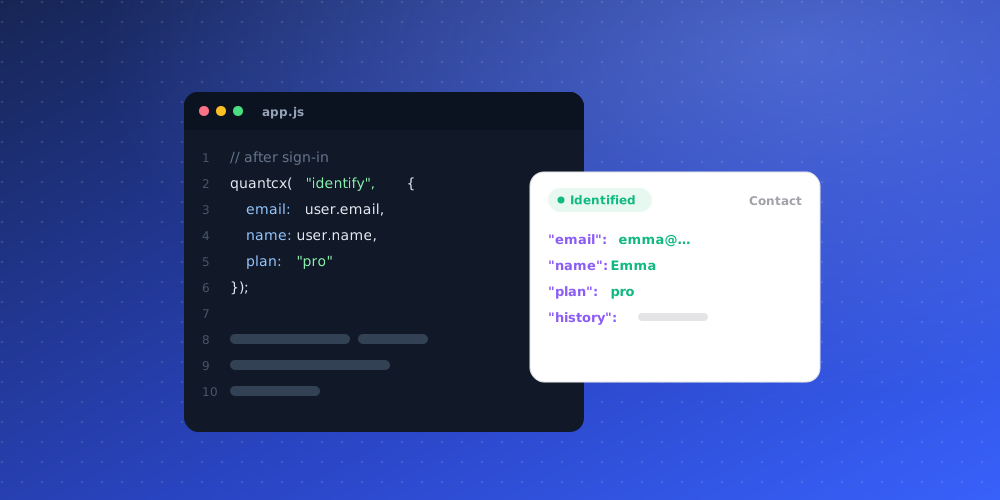
If people sign in to your website or app, you can tell the widget who they are. The widget then greets them by name, skips asking for their email, and labels their conversation in your inbox with their name and email instead of "Website visitor".
This needs a few lines of JavaScript on your site. Share this article with your developer if you don't edit your site's code yourself.
Set up the command queue
Add this line before any other QuantCX command. It lets you call commands even before the widget script has finished loading. They run in order once it is ready.
<code>window.QuantCX = window.QuantCX || function () { (window.QuantCX.q = window.QuantCX.q || []).push(arguments); };</code>Identify a visitor
Once you know who is signed in, call:
<code>QuantCX("identify", { name: "Jane Doe", email: "jane@example.com" });</code>Names longer than 80 characters and emails longer than 254 characters are cut short. If your Home greeting uses {name}, the visitor's first name appears there.
What identify does and doesn't do
The name and email are taken as the visitor's own word. They label the conversation and greet the visitor, but they don't prove anything, so the inbox shows the conversation as Unverified. If you need the AI to treat signed-in users as known clients, use signed identity instead (see below).
If the email belongs to one of your clients' email domains, the conversation is filed under that client.
Open and close the widget
You can open or close the chat window from your own buttons or links:
<code>QuantCX("open"); QuantCX("close");</code>For example, a "Chat with us" button on your pricing page can call QuantCX("open").
Clear the visitor on sign-out
When someone signs out, call:
<code>QuantCX("logout");</code>This makes the widget forget the visitor on this browser, so the next person who chats on the same device does not see the previous person's conversations. Call it on every sign-out, especially on shared computers.
Signed identity
If your site can sign a short-lived token on its server, pass that token instead and the conversation shows as Verified:
<code>QuantCX("identify", { token: "TOKEN-FROM-YOUR-SERVER" });</code>The token is created with a secret from Studio > Brand Settings > Security > Identity verification. For what Verified means, read the article on verified identity. For the full technical setup, see Documentation > Signed identity.