
Customize the widget's appearance and launcher
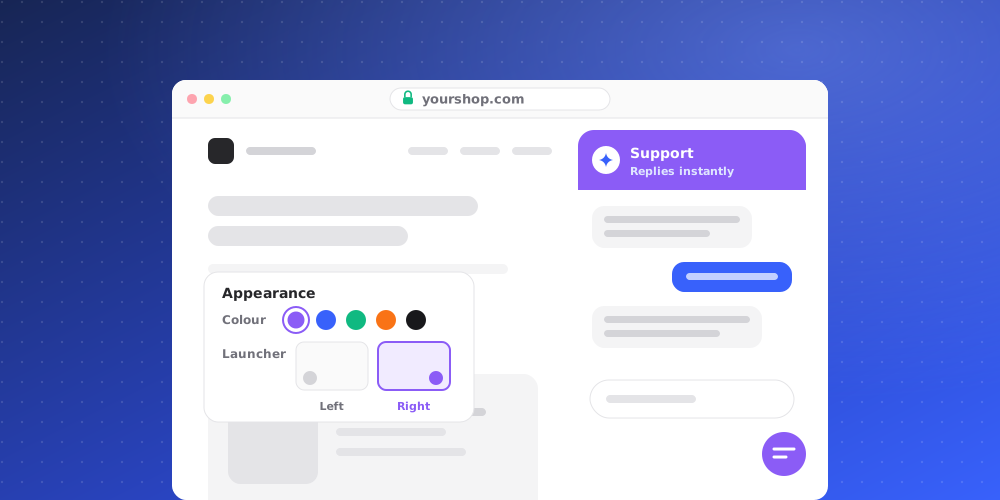
You control how the widget looks from Studio > Chat Widget. The preview next to the settings updates as you change them. When you are happy, click Save changes and then Deploy so visitors see the new version.
Appearance
The Appearance tab has two groups.
Style
- Theme: Light or Dark.
- Tinted grayscale: tints neutral surfaces toward your accent color for a more cohesive look.
- Accent color: turn it on to pick a custom Color for interactive elements. You can also choose Use accent color for header and Use accent color for send icon.
- Effect: None, Glass or Gradient. With Gradient you can set a Gradient color.
- Radius: how rounded the corners are, from Sharp radius to Pill radius.
Typography
Choose the Font family and Font size used inside the widget.
Launcher
The launcher is the button that sits on your page while the chat is closed. On the Launcher tab you can set:
- Position: Left or Right corner of the page.
- Chat Widget icon style: pick one of the built-in bubble icons, or click Add icon to upload your own.
- Chat Widget button color: the launcher's background color.
- Show text in the Chat Widget: adds a short text label next to the icon.
Conversation header and messages
The Conversation tab controls what visitors see inside the chat:
- Agent picture, with an optional Border around profile picture.
- Show online status and Detailed header. The detailed header can show a verified badge and a Response time.
- Display name: the name shown at the top of the chat.
- Initial message: the first message visitors see. Put each message on a new line. You can use a different message on mobile.
- Auto show initial messages pop-ups after set duration, with a delay in seconds and separate settings for mobile.
- Message placeholder, a Dismissable notice and a Footer.
- Suggested messages: prompts visitors can click. Turn on Keep showing suggested messages to keep them visible after the first message.
Features
The Features tab turns parts of the widget on or off, including Attachments, AI answers from your knowledge, then hands off to the team, Ask for email after the first message, Voice to text (Dictation), Copy message, Collect user feedback and Delete conversations.
On phones
On a phone, the open widget fills the whole screen. The launcher stays in the corner you chose.