
Send ticket events to your systems with webhooks
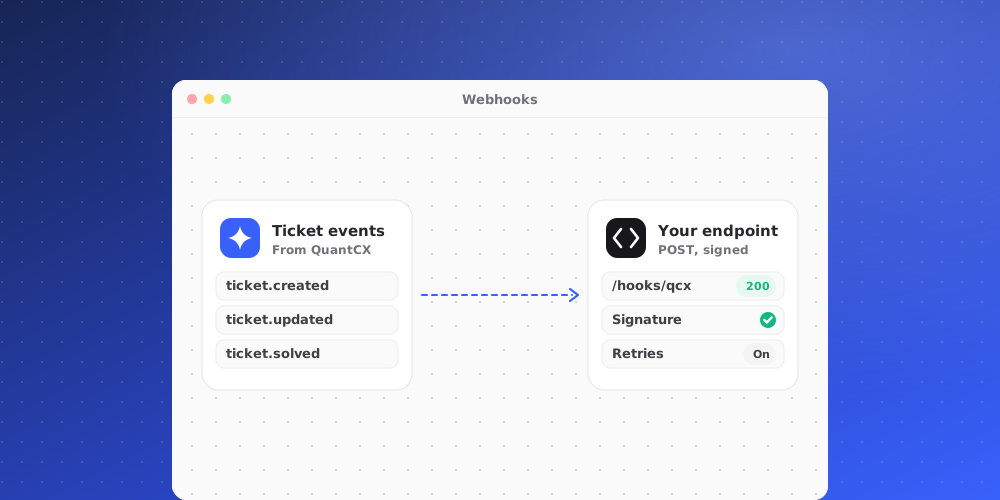
Webhooks send an event to your own system every time a ticket is created or changes. Use them to keep a data warehouse, CRM or internal tool up to date without polling.
Who can manage webhooks
Owners and admins can create, pause and delete webhooks and see their deliveries.
Create a webhook
- Go to Settings > Channels & API > Webhooks.
- Click New webhook.
- Enter a Name (up to 80 characters), for example "Data warehouse".
- Enter the HTTPS endpoint: a public
https://address with no username or password in it. - Click Create webhook.
The events
ticket.created: a new ticket was created.ticket.updated: a ticket changed, for example its status, priority, assignee or tags.
Each event is a JSON POST with the event name, when it happened, and the ticket: its number, status, priority, subject, channel, requester, assignee, team, tags and category.
Check the signature
Every webhook has its own signing secret, shown on its row with a copy button. Give it to your developers. Each delivery carries an X-QuantCX-Signature header. Your system should check it by signing timestamp.raw_body with HMAC-SHA256 and the secret, and refuse anything that does not match. This proves the event came from QuantCX and was not changed on the way.
Deliveries also carry X-QuantCX-Event (the event name) and X-QuantCX-Delivery (a unique id you can use to ignore duplicates).
Deliveries and retries
- Your endpoint should answer with a 2xx status. Anything else, a redirect, or no answer within 10 seconds counts as a failed delivery.
- Failed deliveries retry automatically, waiting longer each time, up to 8 attempts in total.
- Each webhook shows its Latest delivery: the result, the HTTP status your endpoint returned, and the number of attempts.
For safety, QuantCX never sends webhooks to private-network addresses and never follows redirects.
Pause or delete
- Use the switch on a webhook to pause it. A paused webhook shows Paused and gets no new events until you turn it back on.
- Choose Delete from its menu to remove it.
Developers can find the full payload and a signature example under Documentation.