
Add a custom app to the Desk side panel
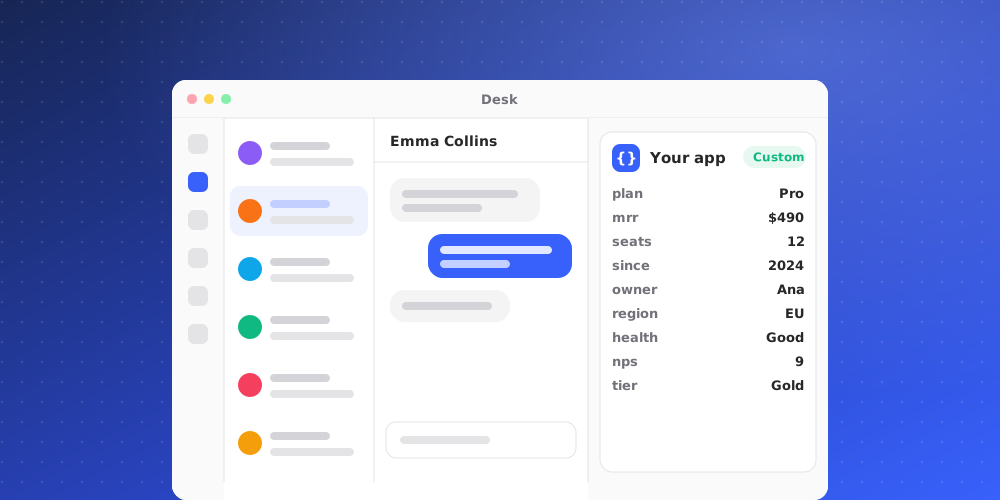
A custom app shows data from your own systems in the Desk side panel. When someone on your team opens a conversation or ticket, QuantCX sends the contact's details to a web address you provide. Your system answers with a small card, and QuantCX draws it in the panel. Your team sees the card. The AI and the customer never do.
This article covers the setup in QuantCX. Your developers build the part that answers; send them to Documentation > Custom apps for the request, the card format and how to check the signature.
Who can do this
Owners and admins add, change and delete custom apps. Every member sees the cards, for your workspace's own clients only. A workspace can have up to 10 custom apps.
Add an app
- Go to Settings > Integrations > Custom apps and click Add app.
- Enter a Name. It is shown on the app in the side panel, for example "Rewards".
- Enter the Endpoint URL: a public
https://address on the standard port. Your developers give you this. QuantCX waits up to 5 seconds for an answer. - Click Add app.
Copy the signing secret
Right after you add the app, QuantCX shows its signing secret. Click Copy and pass it to your developers securely. It lets your system check that a request really came from QuantCX.
The secret is shown only once. If it is lost, click Rotate secret to make a new one. The old one stops working at once, so your system must be updated with the new secret.
Send a test
Click Send test. QuantCX calls your endpoint with a sample contact and tells you what came back, for example "Reached. Card with 2 sections". If it fails, the error is shown and stays under Last error.
Check how it is doing
Each app shows a status:
- Working: the last call succeeded.
- Failing: the last call failed. Check Last error with your developers.
- Not called yet or Off.
In the Desk, an app whose endpoint failed shows as unavailable so your team knows why its card is missing. If your system has nothing for a contact, the app is simply not listed for them. Cards are refreshed about once a minute per contact.
Turn off or delete
- Use Show in the side panel to switch an app off without deleting it.
- Delete removes its card from the side panel and deletes its signing secret. This can't be undone.
What a custom app never does
- Run your code or HTML inside QuantCX. Cards are plain text.
- Send the conversation's messages to your system.
- Share the card with the AI or the customer.