
How apps work in the Desk side panel
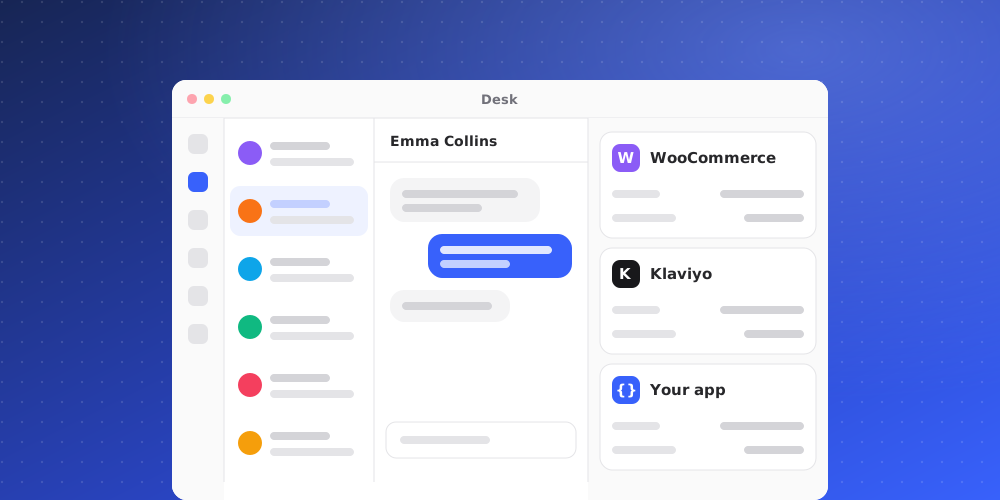
When you open a conversation or a ticket in the Desk, the panel on the right has three tabs at the bottom: Details, Apps and Copilot. The Apps tab shows data about the customer from the tools you have connected, such as YourPropFirm, WooCommerce, Klaviyo, Customer.io, Crisp, or your own custom apps.
The app dock
Above the tab bar is a row of app icons. QuantCX (the customer's history with you) is always first. After it come the connected apps that have data for this customer. Click an icon to open that app. The open app has a dot under it.
- An app that needs attention, such as a pending payout or a failed payment, gets a badge in the corner. When you open a conversation, the panel opens the first app that needs attention.
- Each app can add one key fact to the Details tab. Click it to open the app.
- The last tile, + (Add apps), opens Settings > Integrations, where you connect more apps.
If a connected app has nothing for this customer, it is not listed. If the app could not be reached, it shows as Unavailable with a short message such as "Couldn't reach WooCommerce". Try again in a moment.
How a customer is matched
Apps look up the customer by the exact email address of the conversation's contact or the ticket's requester. QuantCX does not guess or match on names. If the email is different in the other tool, no record appears.
Answers are kept for a few minutes, so moving between a customer's conversations does not ask the other tool again each time.
What the three rules mean
Staff only
Side-panel data is for your team. Every member of the workspace can see it in the Desk. It is never shared with the AI agent and never shown to the customer.
Own clients only
An API key for a store or platform can usually read every customer in it. To keep the panel from becoming a search box over all of them, QuantCX only looks up an email that belongs to a contact of a conversation or a ticket requester in your own workspace.
Read-only
The built-in apps only read. QuantCX never changes orders, profiles, accounts or payouts in the connected tool. Each app also shows only a fixed set of fields. Sensitive things such as addresses, phone numbers, payment details or passwords are left out on purpose.
Who can connect apps
Owners and admins connect and disconnect integrations under Settings > Integrations. Keys are checked with the provider before they are saved, stored encrypted, and never shown again. Other members can see whether an app is connected but cannot change it.
Related articles
- Connecting YourPropFirm, WooCommerce, Klaviyo or Customer.io
- Connecting Crisp
- Adding a custom app