
Connect Crisp: import history and keep it in sync
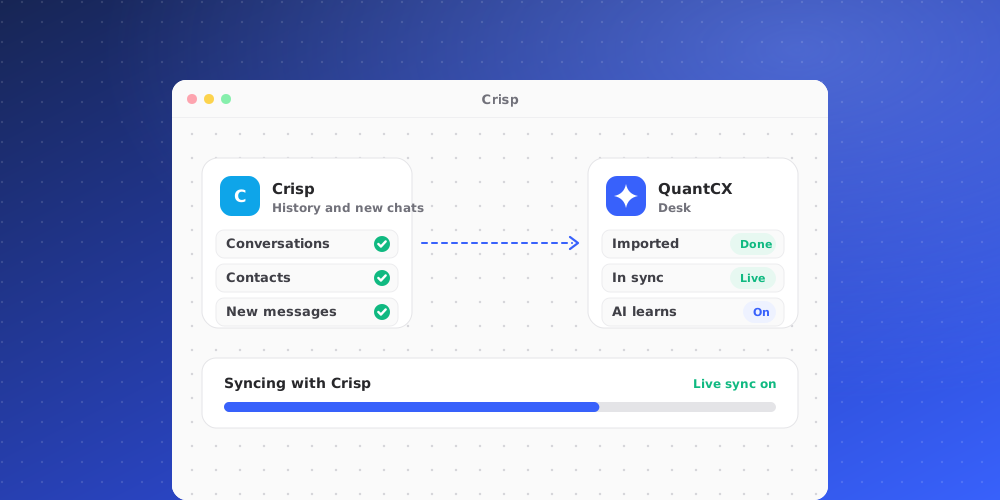
The Crisp integration brings a client's Crisp contacts and chat history into QuantCX, keeps new messages in sync, and adds a Crisp app to the Desk side panel. It is read-only: QuantCX never sends messages, changes data or lets the AI reply in Crisp. AI replies in Crisp is always off.
Each Crisp connection belongs to one client. You can connect several clients' Crisp websites. Owners and admins connect, import and disconnect. Other members can see the connections but not change them.
Before you start
Add the client first under Settings > Clients, so the history has somewhere to be filed.
Connect
- In Crisp, get an API identifier and key. Use the matching pair from Crisp's workspace API Token settings, or from a Marketplace plugin. QuantCX detects the token type automatically.
- Go to Settings > Integrations > Crisp and open Connect Crisp. Fill in:
- Client: whose Crisp this is. Imported contacts and conversations are filed under this client.
- Brand (optional): files imported conversations under this brand. This does not turn on AI replies.
- Website ID: in Crisp, under Settings > Website settings > Setup instructions.
- API Identifier and API Key.
- Label (optional).
- Save. QuantCX checks the identifier and key with Crisp before saving anything. The key is stored where nobody can read it, including you. If you lose it, make another in Crisp and reconnect.
Import
The import starts on its own. It brings in every contact and the last 90 days of conversations. The Import tab shows the progress of contacts and conversations. Unfinished imports continue automatically every five minutes, even if you close the page. To run an extra batch now, use Import contacts now or Import conversations now.
Live sync
To get new messages as they are sent, set up a webhook on the Live sync tab:
- Click Generate URL and copy it. The URL contains a private key for this connection, so copy it before you leave the page.
- In Crisp, open Website Settings > Advanced Configuration > Web Hooks. Name the hook QuantCX, paste the whole URL into "URL To Be Called", and turn on
message:send,message:receivedandsession:set_state. - Send a test message in the site's chat. When it shows up in the inbox, live sync works.
Generate replacement URL turns off the old webhook credentials, so update the URL in Crisp afterwards. If you use a Crisp Marketplace plugin hook instead, open Using a Marketplace plugin hook instead? and save the signing secret Crisp gives you.
The Crisp app in the side panel
Once connected, the Desk side panel shows a Crisp app for a contact who exists in your connected Crisp websites (up to three). It shows the contact's name, company, location, segments, whether they are online now, when they were first seen in Crisp, some of their Crisp data, and their latest Crisp conversations with links into Crisp. Like every side-panel app, it is for your team only and is matched by exact email.
Disconnecting
Disconnecting deletes the key with the connection. Contacts and conversations already imported stay. Nothing new arrives.