
Connect Claude, ChatGPT or Cursor to QuantCX (MCP)
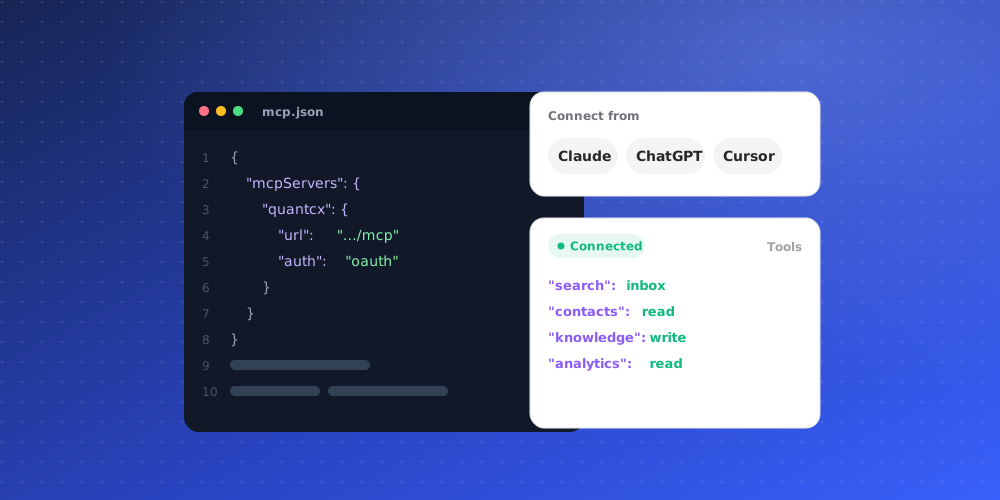
QuantCX has an MCP server, so you can work with your helpdesk from an AI app you already use: Claude (claude.ai, Claude Desktop, Claude Code), ChatGPT, or developer tools such as Cursor. The app can search tickets and conversations, read knowledge and KPIs, and, if you allow it, reply to customers and update tickets as you.
The server address is:
https://app.quantcx.com/api/mcp
Your workspace's plan must include API access.
Connect an app
Claude.ai or Claude Desktop
In Claude, open Settings > Connectors > Add custom connector. Name it QuantCX, enter the address above, click Add, then Connect. On Claude Team or Enterprise, an owner adds it once under Organization settings > Connectors.
ChatGPT
In ChatGPT, open Settings > Apps & Connectors > Advanced and turn on Developer mode (needed for write tools). Click Create, enter the address above, choose OAuth authentication, and click Create.
Claude Code
Run claude mcp add --transport http quantcx https://app.quantcx.com/api/mcp, then type /mcp, pick quantcx and choose Authenticate.
Cursor
Add { "mcpServers": { "quantcx": { "url": "https://app.quantcx.com/api/mcp" } } } to your Cursor MCP settings. Cursor signs you in on first use.
Approve the connection
Each app sends you to QuantCX to sign in. On the consent screen:
- Pick the Workspace the app may use. One connection covers one workspace.
- Choose the access:
- Read only: search and read tickets, chats, knowledge and KPIs.
- Read and write: also reply to customers, change tickets and add knowledge, as you. Only offered if the app asks for it.
- Click Allow.
The app acts as you, with your role's permissions. It cannot do anything in QuantCX that you could not do yourself. A reply sent through it really goes to the customer.
Note that data the app reads, such as tickets, conversations and contact names, is sent to that AI provider and handled under its terms.
See and disconnect apps
Open your account settings and go to Connected apps. You can also get there from the MCP card under Integrations. Each app shows its workspace, whether it is Read only or Read and write, when it was connected and when it was last used.
Click Disconnect to stop an app at once. Its access ends and its sign-in is removed. To use it again, connect it again.
Using an API key instead
For scripts or tools without sign-in, you can send a workspace API key as Authorization: Bearer qcx_live_…. An API key is read-only through MCP and can read tickets and conversations only. Knowledge, KPIs and all writes need the sign-in connection. See Create and manage API keys.
Developers can find the full tool list and limits under Documentation.