
Connect WooCommerce
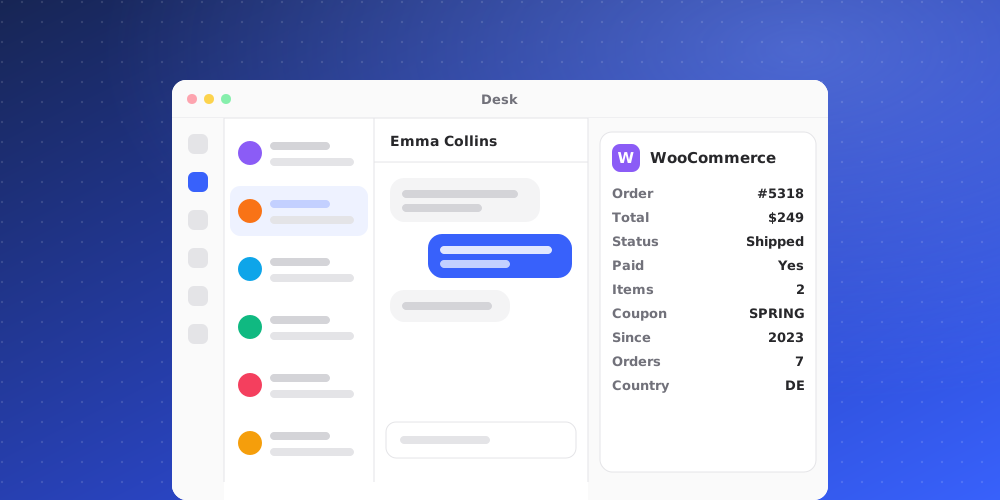
Connect WooCommerce to see a client's store orders next to their conversation or ticket: status, totals, items, coupons and refunds. It is read-only. QuantCX never changes anything in WooCommerce.
Owners and admins can connect and disconnect. Every member of the workspace sees the data in the Desk side panel, for your workspace's own clients only. It is never shared with the AI agent or the customer.
Create a read-only REST key
In WordPress, open WooCommerce > Settings > Advanced > REST API. Add a key with Read permission and copy the consumer key and consumer secret.
Connect it in QuantCX
- Go to Settings > Integrations and open the integration, then click Connect.
- Fill in the fields:
- Store address: where your WordPress site answers, starting with
https://. - Consumer key: starts with
ck_. Use a key with Read permission only. - Consumer secret: starts with
cs_. Write-only. After you save it, nobody can read it back.
- Store address: where your WordPress site answers, starting with
- Click Connect. QuantCX checks the key with the provider first. If the check fails, nothing is saved.
The key is stored encrypted and is never shown again, not even to admins. To change it, disconnect and connect again with the new key.
What the side panel shows
The WooCommerce app appears when the client's exact billing email has orders, including guest checkouts. It shows:
- Each order's number, status, total, refunded amount, payment method, items, coupons and dates.
- Totals: number of orders, amount spent and amount refunded.
On a ticket, the order the ticket is about is shown under This ticket. The app gets a badge when something needs attention, such as Payment failed or Awaiting payment.
What it never does
- Create, change or refund orders.
- Show addresses, phone numbers or payment details.
- Share orders with the AI or the customer.
Disconnecting
The REST key is deleted from QuantCX and orders stop showing in the Desk. Revoke the key in WooCommerce too if you no longer need it.