
Teams and ticket assignment
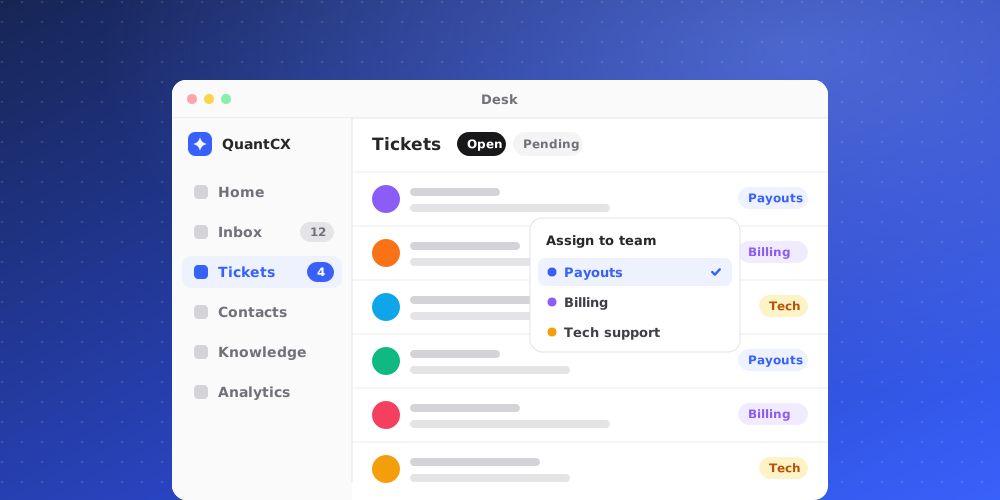
Every ticket belongs to a team and can have one assignee: the person responsible for it. Teams let you route work, such as payments questions to the people who handle payments, and can share new tickets out among their members automatically.
Create a team
- Go to Settings > Team and open the Teams tab.
- Choose New team.
- Give it a Name, for example "Billing Support", and add Members.
- Pick an Assignment strategy and, optionally, a Max tickets per agent.
- Choose Create team.
One team can be the Default team: new tickets that nothing else routes land there.
Assignment strategies
- Manual: new tickets wait for someone to assign them.
- Round Robin: new tickets are automatically shared fairly across available team members.
- Balanced: new tickets automatically go to the team member with the fewest open tickets.
With an automatic strategy, QuantCX only picks members who are available, and skips anyone who already has the Max tickets per agent. Leave the maximum empty for no limit. Members can switch their own availability when Let teammates set their own status is on under Settings > Team > Members.
How tickets reach a team
- By brand: in Studio > Brand Settings > Assignment, choose the Default team that receives that brand's new tickets. The team's strategy then decides who gets each one.
- By category: a category can have a Default team. Picking that category when converting a chat fills in its team.
- By trigger: under Settings > Automation > Triggers, a rule can assign a team when a ticket is created or updated, and can auto-assign a member using the team's strategy.
- By hand: when you convert a chat, you choose the Team in the dialog.
Change a ticket's team or assignee
Open the ticket and look at the Handling section of the Details panel.
- Click the Team pill and pick another team to move the ticket.
- Click the Assignee pill to take the ticket yourself. An unowned ticket shows a dashed Unassigned pill.
When you create a ticket, tick Assign to me to own it from the start. When you convert a chat, choose yourself or Unassigned as the assignee.
Every assignment is recorded on the ticket's timeline, such as "assigned this ticket to themselves", and the new assignee is notified if they have Assigned to me notifications turned on.
See who has what
- My Tickets lists your unfinished tickets.
- Unassigned lists unfinished tickets without an owner. Check it regularly so nothing waits unseen.
- In your own views, filter by Assignee or Team, and add the Team or Assignee details to Kanban cards with Display.