
What a ticket is, and converting a conversation
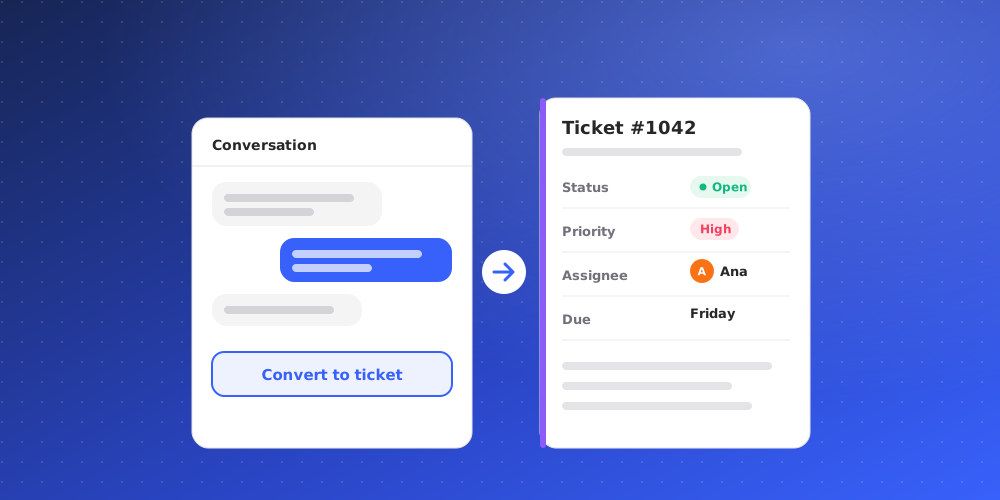
A chat is a live conversation. A ticket is a piece of follow-up work: something your team has to come back to, such as a refund, an account check or a question for another department. Tickets have a number, a status, a priority, a team and a category, and they reply to the customer by email.
Use a ticket when the answer won't happen in the chat, when someone else has to do part of the work, or when you need to track it until it is done.
Convert a conversation to a ticket
- Open the conversation in the Inbox.
- Choose Ticket in the conversation header (its tooltip says Convert to ticket).
- Check the Subject. It starts as the conversation's subject.
- Pick a Category. QuantCX may suggest one from the conversation's topic. Every converted ticket needs a category; if your workspace has none yet, the dialog links you to where you add one.
- Choose the Team and the Assignee: yourself, or Unassigned. A category with a default team fills in the team for you.
- Pick the Initial status: Open, In Progress or Waiting on Client.
- Choose Create ticket.
If the chat has no email address yet, the dialog asks for a Client email, because the ticket replies by email.
When the ticket is created, the chat is resolved and linked to it. The conversation shows "Converted to ticket" with the ticket number, and the Details panel links to the ticket. On the chat widget, the visitor sees that a ticket was opened.
Create a ticket from scratch
Choose New Ticket at the top of the Desk sidebar. Fill in the Customer name, Customer email, a Subject and, optionally, a Description. The description is context for your team and isn't sent to the customer. Pick a Category and a Priority, tick Assign to me if it is yours, and choose Create ticket. Tickets you create reach the customer by email.
Find your tickets
Under Tickets in the Desk sidebar:
- Unassigned: unfinished tickets nobody owns.
- My Tickets: unfinished tickets assigned to you.
- All Tickets: every ticket.
- Updates: your notifications about tickets and chats.
Below these are views. At Risk lists unfinished tickets whose response or resolution time is in trouble, and Complete lists finished ones.
Make your own views
Choose New View to save a filtered list. Give it a name and an optional emoji, add filter rows (for example Priority is any of Urgent, or Category is none of a category), and choose its columns and sort order. A Personal view is only yours. A Shared view appears for the whole workspace; only owners and admins can share views.
Table or board
Use the layout buttons above the list to switch between Table and Kanban. The board has a column per status; drag a card to another column to change its status. Use Display to choose which details each card shows.