
Ticket statuses and priority
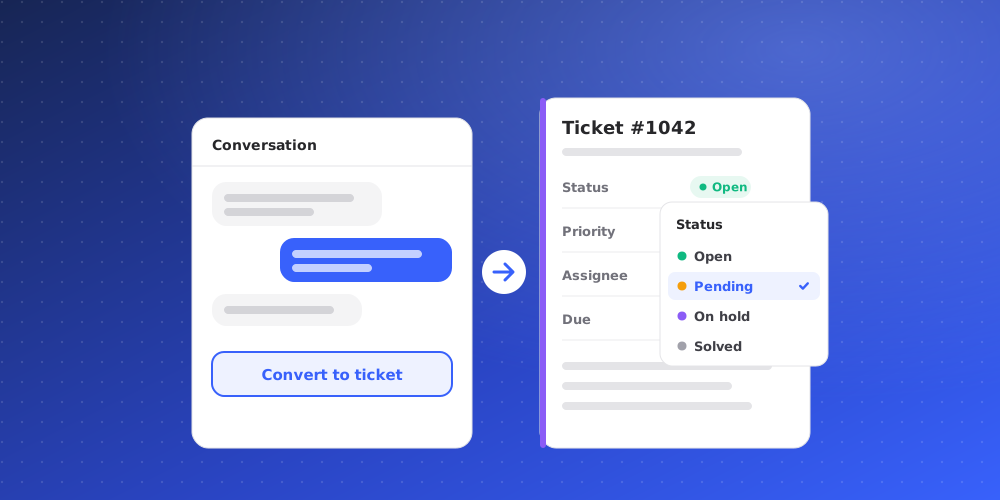
Every ticket has one status, which says where the work stands, and one priority, which says how urgent it is. Both show on the ticket list and in the ticket's Details panel, and both can be changed at any time.
Statuses
A ticket is always in one of four statuses:
- Open: not picked up yet. New tickets start here unless you choose otherwise.
- In Progress: your team is working on it.
- Waiting on Client: you are waiting for the customer or client to reply.
- Complete: done.
Open, In Progress and Waiting on Client count as active. Complete is the only closed status. When a ticket moves to Complete, QuantCX records when it was resolved, which feeds your reports.
Who owns a ticket isn't a status. Use the Unassigned and My Tickets views for that.
Change the status
- On the ticket, click the status button at the top right of the ticket header and pick the new one. The same control is in the Handling section of the Details panel.
- On the Kanban board, drag the card to another column, or use the card's menu and choose Move to.
Each change is recorded on the ticket's timeline, for example "changed ticket status from Open to In Progress", with who made it and when.
Some actions move the status for you. When you use Ask the client to send a question to a client's Slack channel, the ticket moves to Waiting on Client. Triggers set up under Settings > Automation > Triggers can also set a status when a ticket is created or updated.
Priority
There are five priority levels:
- Urgent
- High
- Medium
- Low
- No priority: the default until someone picks a level.
Set the priority when you create a ticket, or later from the Priority row in the Details panel. Choosing No priority clears it. Each change is recorded on the timeline, for example "set the priority to High".
Use status and priority in lists
- Sort the ticket list by Status or Priority, for example Priority (high → low) to work the most urgent tickets first.
- In a view's filters, use Status to match exact statuses, Status category to match active or closed tickets, and Priority to match levels. A view called "Urgent and open" could combine Priority is any of Urgent with Status is none of Complete.
Response times
If your workspace has SLA policies under Settings > Tickets > SLAs, the ticket header and the SLA row show how much time is left, and the At Risk view collects active tickets whose response or resolution time is in trouble. Tickets without a policy show No SLA policy.