
Ticket categories
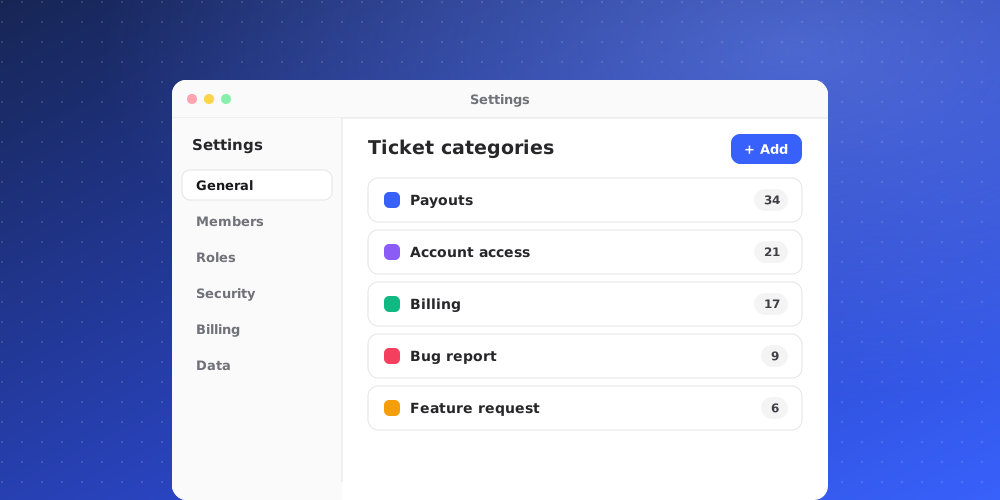
Categories sort your support work into topics, such as billing, account access or shipping. Each ticket gets one category, and chats can use the same list, so filters and reports read the same way whether you look at chats or tickets.
Where categories are used
- A category is required when you convert a chat to a ticket.
- You can set or change the category on any chat or ticket from the Category pill in the Details panel.
- Ticket views can filter on Category.
- A category can send new tickets to a default team.
Create a category
Owners and admins manage categories.
- Go to Settings > Tickets and open the Categories tab.
- Choose New category.
- Enter a Name. Each name must be unique in the workspace.
- Optionally, add a Description that says what belongs in the category. It helps teammates pick the right one.
- Pick a Colour. The colour shows as a dot on the category chip everywhere.
- Optionally, pick a Default team. New tickets in this category go to that team.
- Save.
A new workspace starts without categories. Add at least one before your team converts chats, or the convert dialog asks for one.
Edit and reorder categories
Open the menu at the end of a category's row:
- Edit changes its name, description, colour or default team. Tickets already in the category show the new name straight away.
- Move up and Move down change its place in the list. The order here is the order teammates see in every category picker, so put the most common ones first.
Use the search field to find a category in a long list. Reordering is available when the search is empty.
Archive a category
When a topic is no longer used, choose Archive from its menu instead of leaving it in the list. Archived categories stay on existing tickets, so your history and reports keep their labels, but they can't be picked for new ones. A workspace always keeps at least one active category.
Archived categories are listed under Archived categories on the same page. Choose Restore to make one available again.
Choose a category on a chat or ticket
Click the Category pill in the Details section of the side panel and pick from the list, or choose Uncategorized to clear it. On a ticket, the change is recorded on the timeline, for example "set the category to Billing".
When you convert a chat, QuantCX may suggest a category from the conversation's topic. The dialog says "Suggested from the conversation topic." Change it if it doesn't fit.
Tips
- Keep the list short. A handful of clear categories gets used consistently; dozens of narrow ones don't.
- Name categories after the customer's problem, not your internal process.
- Use the default team to route specialist topics without a trigger.