
The ticket timeline, replies and notes
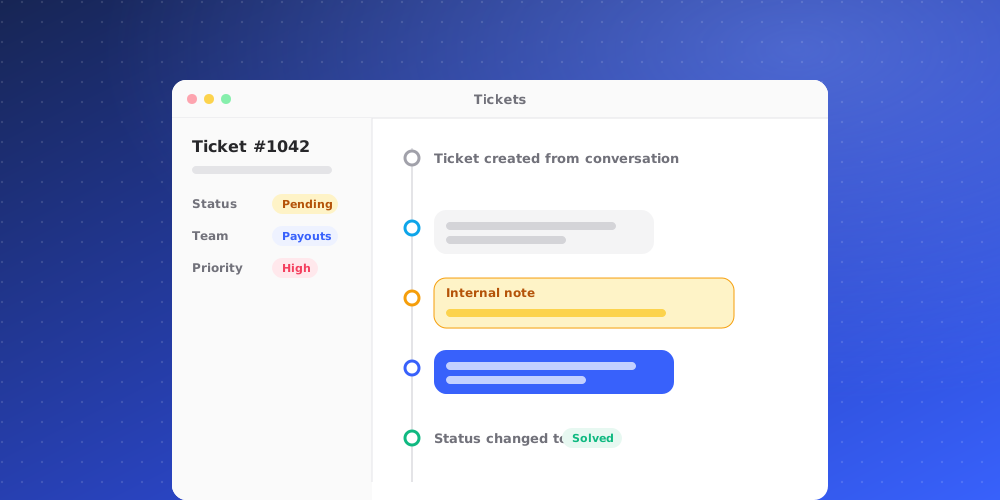
Open a ticket to see its timeline: everything that has happened on it, oldest at the top and newest at the bottom, with the composer underneath for your next reply or note.
What the timeline shows
- The customer's messages and your team's replies.
- Private notes, marked as notes so they can't be mistaken for replies.
- Changes to the ticket, each with who made it and when: status changes ("changed ticket status from Open to In Progress"), assignments ("assigned this ticket to themselves"), someone taking the ticket ("took the ticket"), category changes and priority changes.
Long tickets load their most recent activity first. Choose Load earlier activity at the top to see older entries.
The header above the timeline shows the subject, the SLA clock if one applies and the status. Use the up and down arrows next to the back button to move to the previous or next ticket in the list without going back to it.
Reply to the customer
The composer opens on the Reply tab. Ticket replies go to the customer by email.
- Format your text with the toolbar: bold, italic, lists, links, quotes and more.
- Choose Saved replies, or type
/, to insert one of your team's saved replies. - Choose Insert variable to drop in the client's name or email, the ticket ID or your own name.
- Choose Add attachments to attach files, up to 10 MB each.
Press ⌘ + Enter (Ctrl + Enter on Windows) or choose Send. If you leave before sending, your draft is kept for that ticket.
Write a private note
Switch the composer to the Note tab, or choose Add a note in the Notes section of the Details panel. Notes are only for your team; the customer never sees them. Use them to record what you checked, hand over context, or leave instructions for whoever picks the ticket up next.
The Notes section of the Details panel lists a ticket's notes, newest first, with a count in its heading, so you can catch up without scrolling the whole timeline.
Ask the client
If you serve business clients through Slack, the ticket header has Ask the client. Write your question and send it: it goes into that client's Slack channel as a new thread, and the ticket moves to Waiting on Client. Their answer comes back to the ticket as an internal note. The customer sees nothing until you reply to them yourself.
Use Copilot on a ticket
Open the Copilot tab in the side panel, or press ⌘J, to ask about the ticket. Copilot already has the ticket and its linked conversation as context. When it drafts a reply, insert it into the composer, check it and send it.
Go back to the original conversation
A ticket converted from a chat has a Conversation row in the Details panel. Choose Open in Inbox to read the chat it came from.