
Set up clients and their email domains
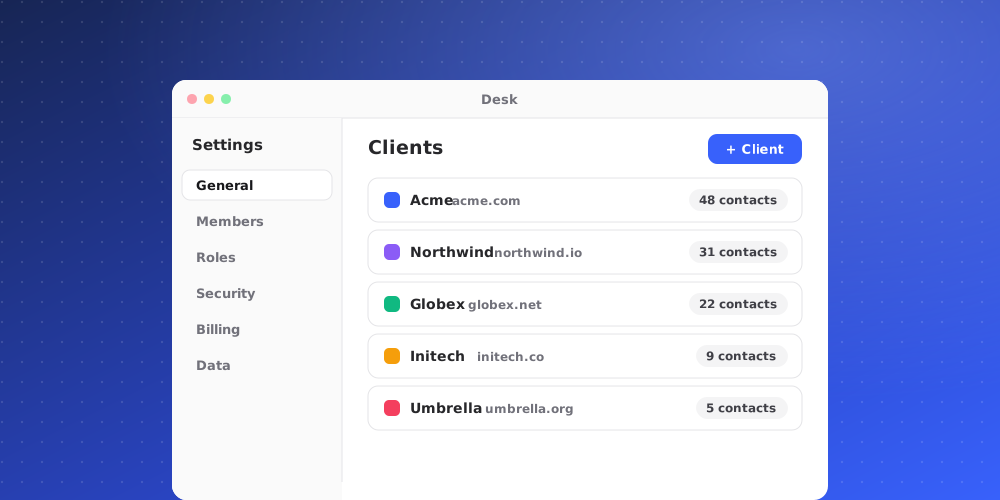
A client is a company you serve. A client ties together their Slack channel, their email domains and their conversations, so your team and the AI know who they are talking to and can tell a prospect from someone who already pays.
Clients are shared across the whole workspace. One client can talk to several of your brands.
Create a client
- Open Settings > Channels & API > Clients.
- Enter the client's name and click Add client.
Only owners and admins can change clients. Two clients in the same workspace can't have the same name.
Add email domains
Open a client and add the domains their team writes from under Email domains, for example example.com, then click Add domain.
An address at one of these domains belongs to this client. QuantCX uses this automatically:
- When a widget visitor gives an email address at a client's domain, their open conversations are filed under that client.
- When an email ticket comes in from an address at a client's domain, the ticket is filed under that client.
Matching uses the exact domain after the @. If a client writes from both example.com and eu.example.com, add both.
Domains are not proof
A domain says who an address belongs to, but anyone can type an address. People at a client's domain still verify themselves before the AI answers them as a client. They do this by answering an emailed code, or by writing in a Slack Connect channel their company is in, or by your website signing their identity in the chat widget.
Add people
Under People, you can add the people on the client's team who write to you. Click Add person and enter their email, with their name if you have it. Each person shows as Verified (or Verified in Slack) or Not verified.
People you add here are the same contacts you see on the Contacts page. To add many at once, use the CSV import on the Contacts page.
Connect their Slack channel
If you support a client through Slack, map their Slack channel to the client in Integrations after creating the client.
Delete a client
Click Delete client. Their domains and people are deleted with them. Slack channels and conversations stay, but no longer point at a client.