
Find and manage your contacts
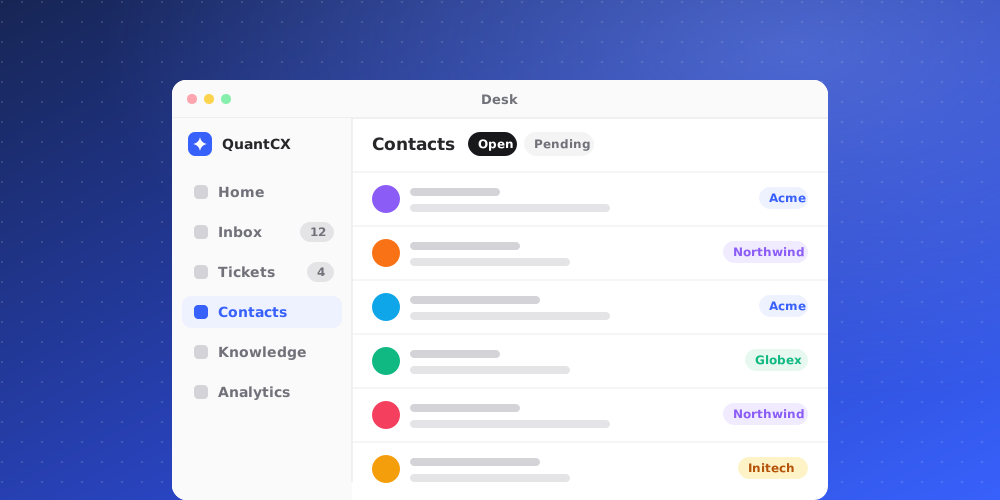
Contacts are the people at your clients who write to you. They belong to the workspace, not to a single brand, so the same person can contact any of your brands and still be one contact.
Open Contacts > All contacts to see them.
Contacts belong to clients
Every contact is filed under a client, the company they work for. If your workspace has no clients yet, the Contacts page says so and links to Add a client. Create a client first, then add or import contacts. See the article on clients and client domains.
Browse the list
- Search contacts finds people by any visible field, such as name, email or client.
- Click a column header to sort by it. Click again to reverse the order, and a third time to clear sorting.
- Columns lets you choose which fields to show. By default you see Email, Name, Client, Phone Number, Country and Verified. You can also show Role, Source, External ID and any custom fields you've added.
- Use Rows per page and the page buttons at the bottom to move through long lists. The total number of contacts appears above the table.
Add a contact
Owners and admins can add people one at a time.
- Click Add Contact.
- Choose the Client they belong to.
- Enter their email and any other details you have, such as name, phone number, role, external ID (their ID in your own system) or source.
- Click Add contact.
To add many people at once, use Import. See the article on importing contacts from a CSV file.
Verified contacts
New contacts are added unverified. The Verified column shows whether a person has proved who they are. A contact becomes verified by answering an emailed code, or by writing in a Slack Connect channel their company is in. Being on a client's email domain alone does not verify anyone.
Verification matters because the AI answers verified contacts as clients, and changelog announcements by email go to verified contacts.
Custom fields
Click Manage Attributes to see the built-in contact fields and add your own, such as "Account tier". Custom fields become columns here, columns the CSV import reads, and keys the API accepts.
Who can change contacts
Owners and admins can add and import contacts and manage fields. Other members can view the list.