
Import contacts from a CSV file
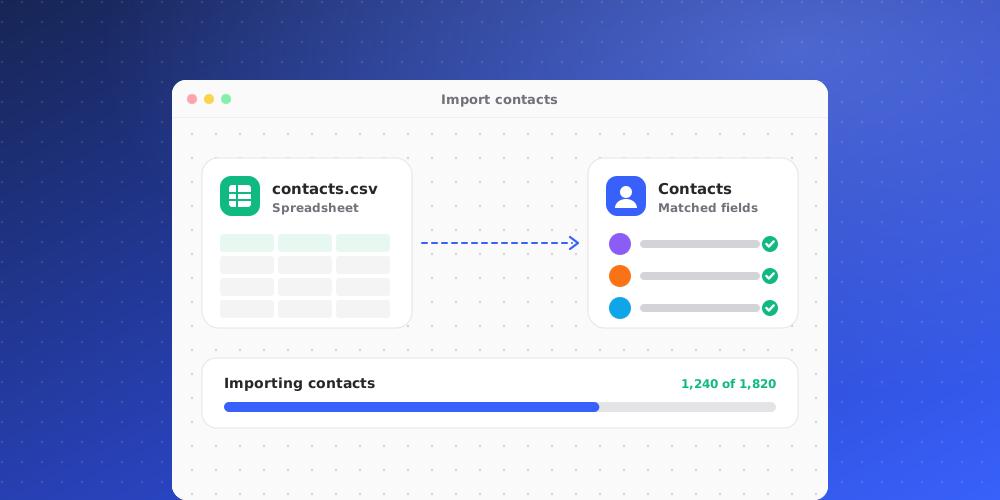
If you have your contacts in a spreadsheet or another helpdesk, you can import them in one go from a CSV file. Only owners and admins can import.
Before you import
Every contact belongs to a client, so your workspace needs at least one client. If it has none, the import window links to Add the first client. You can create clients in Settings > Channels & API > Clients.
Prepare your file
The file needs a header row and an email column. Click Download CSV template in the import window to get a file with the columns QuantCX reads:
<code>email,name,client,phone,role,external_id,country,source</code>Column names are matched loosely, so exports from other tools usually work as they are. For example, "Email Address", "Full Name", "Company" and "Job Title" are all recognised. Columns QuantCX doesn't recognise are ignored, unless they match one of your custom contact fields by name or key.
Import the file
- Open Contacts > All contacts and click Import.
- Under File these people under, choose a client.
- Click the upload area or drag your file onto it. Files up to 5 MB are supported.
The import runs in batches and shows its progress, for example "Importing 1,200 of 3,000…". Keep the window open until it finishes.
How clients are chosen
If your file has a client column, its value wins over the client you picked, so one file can carry several clients. The value must match the name of an existing client exactly (capital letters don't matter). Rows without a client value go to the client you picked.
Existing contacts
Somebody already in your contacts is updated, not duplicated. Matching is by email address.
Read the result
When the import finishes, QuantCX tells you how many contacts were added, updated and skipped, and lists skipped rows with their line number and reason. Common reasons:
- No email address. or Not an email address.
- No client called …: the client column names a client that doesn't exist. Create it, or fix the spelling, and import again.
- A later row has the same email address.: only the last row for each email is used.
- An External ID that appears twice in the file, or already belongs to another contact.
You can fix the file and import it again. Rows that already went in are simply updated.
After the import
Imported contacts are added unverified. They become verified by answering an emailed code, or by writing in a Slack Connect channel their company is in.